Pipedrive QuickBooks Integration: Everything You Need to Know

Businesses must maintain a balance between customer relationships and financial operations. While sales teams focus on closing deals, accounting teams manage the invoices, payments, and reports. Pipedrive QuickBooks integration helps bridge the gap between sales and accounting processes for a smooth workflow.
With seamless integration, it becomes easier for businesses to automatically sync customer data, create invoices from won deals, and track payments without switching between multiple systems.
In this blog, we’ll explain the benefits, features, and setup process of integrating Pipedrive with QuickBooks.
What is Pipedrive?
Pipedrive is a customer relationship management tool that helps the sales team with various tasks, including managing leads, tracking deals, and closing more sales. Besides this, it has an intuitive interface that helps the teams to visualize their sales pipeline, automate repetitive tasks, and monitor performance.
Why Integrate Pipedrive With QuickBooks?
Integrating Pipedrive with QuickBooks reduces manual data entry, avoids errors, and bridges the gap between sales and accounting teams. Other reasons for integrating both Pipedrive and QuickBooks are discussed below.
- Eliminates Data Entry Errors-
Automatically transfer customer contacts, products, and deal values from Pipedrive to QuickBooks. This not only saves the time of manually entering the data, but also eliminates the chance of duplicate entries.
- Automate Invoicing-
You can immediately generate invoices or estimates in QuickBooks the moment the deal is finalized or marked as closed in Pipedrive.
- Real-Time Payment Tracking-
The sales team can also check out the latest invoice statuses, such as sent, viewed, paid, or overdue, directly inside the Pipedrive deal view.
- Reduce Human Error-
Integration helps reduce the risk of repetitive manual entry by transferring sales and invoices.
- Empower Client-Facing Teams-
It also gives customer support and marketing teams insight into a client’s purchasing and payment history without logging into restricted accounting software.
Does Pipedrive Integrate With QuickBooks Desktop?
No, Pipedrive doesn’t integrate with QuickBooks Desktop.
The QuickBooks Desktop users have to run the third-party platforms to connect Pipedrive with the software. For that, search “Pipedrive QuickBooks Desktop Integration” in any of the search engines, and you will get many tools according to your requirement. These tools allow one-way or two-way syncing of the data. Also, it allows the users to link both Pipedrive and QBDT systems to exchange data.
Above all, these third-party tools automate many workflows like syncing customer details, deals, and invoices, but for that, additional setup is required.
Benefits of Pipedrive QuickBooks Integration
Here, we have discussed how Pipedrive integration with QuickBooks is beneficial for businesses.
- Improves Sales and Accounting Collaboration-
Integration of both QuickBooks and Pipedrive will boost the efficiency of sales and accounting teams. Wherein, the sales team can look into the payment statuses directly in Pipedrive, and accounting teams get proper customer details from the CRM.
- Gives Real-Time Insights-
The businesses can get a clear picture of the company’s performance by integrating sales and accounting data. Also, it helps businesses in monitoring revenue trends, forecasting cash flow, and determining top-performing clients or deals.
- Improves Financial Accuracy-
As the sales data and accounting records are synchronized, the reports created in QuickBooks show the revenue and payments. This will help businesses in taking informed decisions and minimizing discrepancies during audits or tax season.
- Streamlines Invoicing-
Once the deal is done, it is marked as “Won” in Pipedrive; the integration will generate an invoice in QuickBooks instantly. This will not only speed up cash flow, but it will also hamper the workflow and enhance customer experience.
- Automates Data Entry
Manual entry of deals, invoices, and payments is a time-consuming and challenging task. Integration automatically syncs the Pipedrive deals with QuickBooks invoices and makes sure that the financial records remain up-to-date.
Read More:- QuickBooks Invoice Template
How to Integrate Pipedrive With QuickBooks
Linking Pipedrive with QuickBooks Online will help the sales and accounting teams work together. As a result, it will help in maintaining consistent customer support and improving cash flow visibility. Perform the following step-by-step instructions for integrating Pipedrive with QuickBooks easily.
- To connect your QuickBooks account, open the account menu from the top right corner.
- Switch to the Tools and apps option.
- Click on the Install option beside QuickBooks.
- This will take you to the Pipedrive Marketplace, where you can complete the installation and give access. Herein, you can also uninstall the app, below the Tools and apps, and then click Marketplace apps.
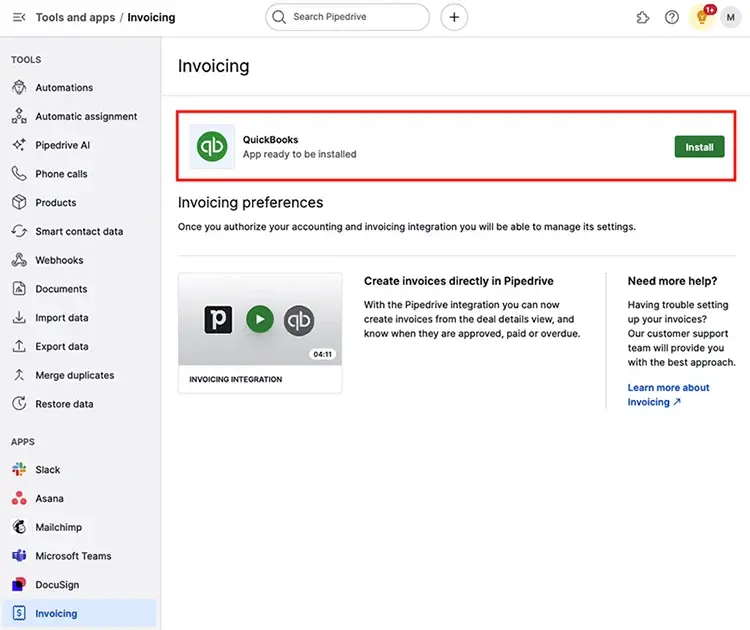
- Once the login is complete, you’ll return to Pipedrive settings to configure QuickBooks preferences.
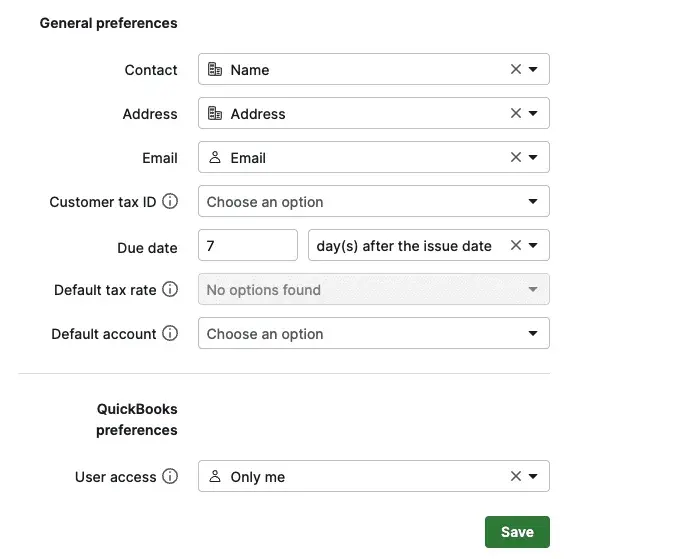
The following fields are auto-populated in QuickBooks when an invoice is created in Pipedrive.
- Contact- This field represents the recipient of the invoice. However, it is suggested that you choose Pipedrive’s organization name field. Alternatively, you can also select from any other organizations, contact, and deal fields.
- Address- In this field, you have to mention the physical address of the invoice’s recipient.
- Email- Herein, you must provide the email address of the recipient of the invoice. It is suggested that you select Pipedrive’s Person-Email field.
- Customer tax ID- This information isn’t mandatory for all the invoices. But if you have generated a custom field in Pipedrive to hold your customer’s tax ID details, you are suggested to apply that field here.
- Due Date- You have to set the payment’s due date.
- Default tax rate- You can use this field to clarify the default tax rate used for products on new invoices.
- Default account- Herein, you can pick the default income account to be used for new invoices.
- After making the selections according to your preference, tap on the Save button. This will save your QuickBooks integration preferences for your Pipedrive company account.
Using the Integration
After completing the integration setup, browse to the detail view of any deal to generate your first invoice. Hit the Invoice tab and choose “+ Invoice” to start.

Although most of the details are automatically filled based on the fields you chose in the settings earlier and values associated with the deal, ensure to include any missing details. You will notice a create invoice window that is segregated into three different sections.
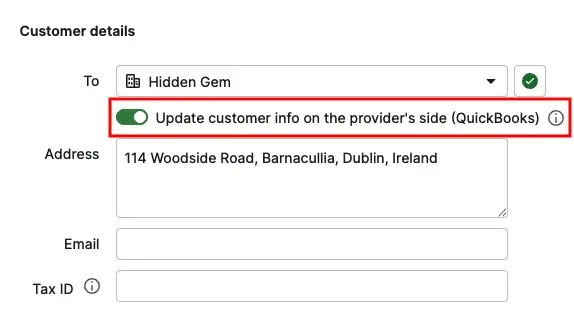
1. Customer Details
This section represents the information regarding the invoice recipient, including the name of the entity being invoiced, the address, email, and Tax ID.
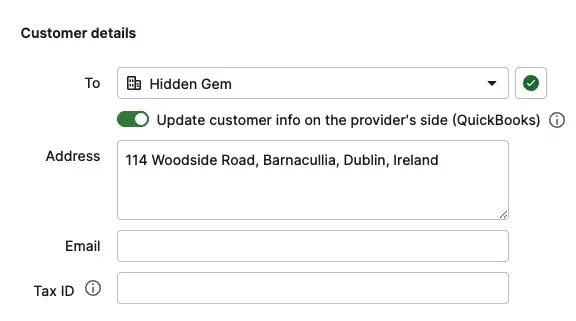
- Start reviewing your invoices with the customer details section. If you notice a warning icon for the “To” field, it shows that the contact isn’t linked with QuickBooks.

- To create an invoice, hit the Warning icon.
- After this, either create a new contact or link the invoice to an existing customer in your QuickBooks account.
- You now have to choose the Confirm option to complete the linking.
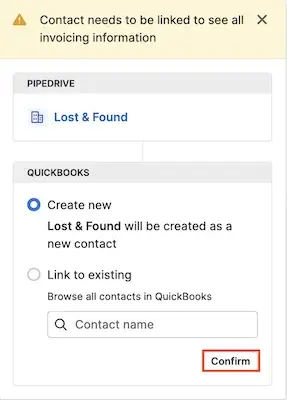
You’ll also see that you can update customer info on the provider’s side. Once enabled, the address, email and Tax ID of the invoice recipient will be pulled into QuickBooks.
2. Invoice Details
This section contains the information regarding the invoice-specific details, including tax, issue, and due dates, currency, and invoice number.
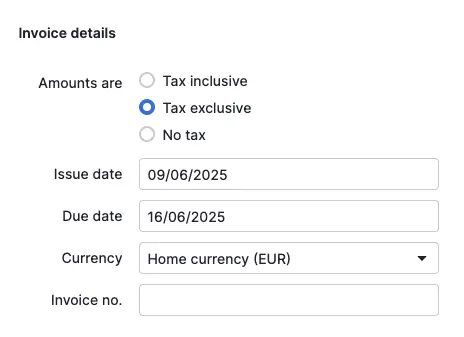
Within the invoice details section, you can easily adjust all the fields to fulfill your company’s requirements. Make sure that the currency field is filled out, as it is a mandatory field on QuickBooks.
3. Invoice Items
This section contains the products or services that make up the charges in your invoice.

While the products connected with the deals are automatically populated in the invoice items section, you can also include more items on your list.
Once you have added all the details, choose the Create Invoice button to send this to your QuickBooks account.
Viewing your invoices
You can now see the new invoice below the invoices tab in the history section of your deal detail view. The invoices within the Pipedrive will show the following things depending on their statuses.
- Open
- Paid
- Voided
- Overdue
- Partially paid
You will get three different icons in the upper right corner of the invoice to perform the following tasks;
- Download PDF- You can now download a PDF version of your invoice to send it to your clients directly.
- Send by email- With this option, you can send any paid or due invoices directly to your customer. Invoices will be sent from QuickBooks.
- Copy Link- You can create a public link for sharing the invoice. You can use this option only when your QuickBooks account has online payments enabled and the invoice includes an email address.
Detail view sidebar
You can see the invoice history in the sidebar of the deal details view. Here, you can refresh to get the latest updates from QuickBooks, or click on “…” to go to Settings or unlink your contact.
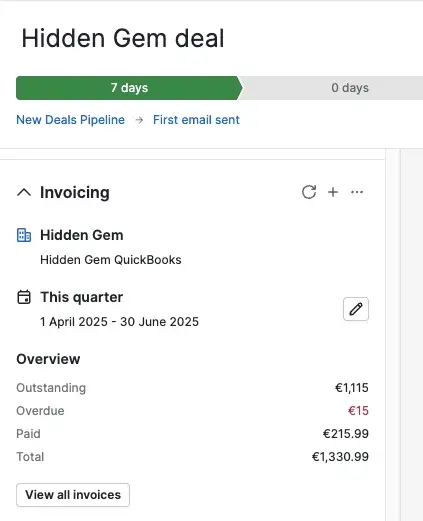
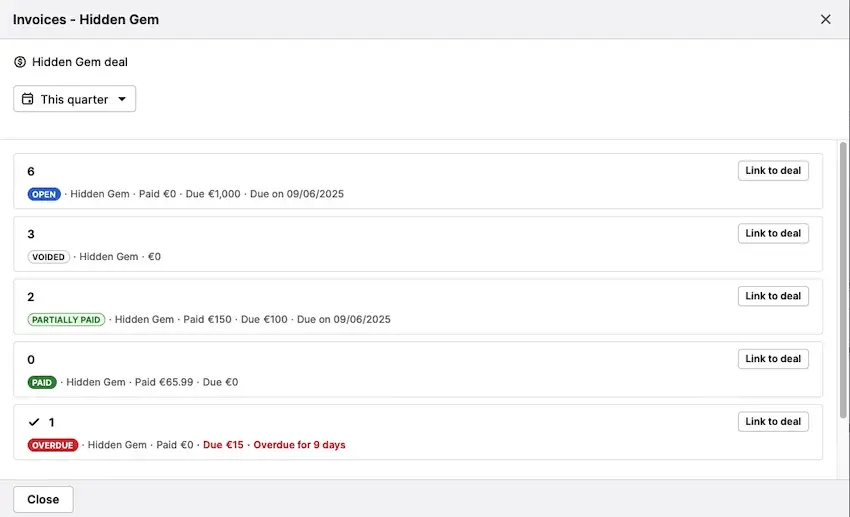
Select “View on invoices” to get more details on all of your linked invoices filtered by a customizable time frame.
You can view all invoices associated with the linked contact and then manage linking and unlinking those invoices to the deal you are presently viewing.
Final Thoughts
Pipedrive QuickBooks integration helps businesses automate invoicing, sync customer information, and improve collaboration between sales and accounting teams. From reducing manual data entry to tracking invoice payments in real-time, this integration streamlines daily business operations. Whether you are a small business or a growing enterprise, integrating Pipedrive with QuickBooks can improve working efficiency, financial accuracy, and customer management.
Frequently Asked Questions
How does Pipedrive integrate with QuickBooks?
Pipedrive integrates with QuickBooks through native integrations and third-party tools such as Zapier. The integration allows businesses to sync invoices, customer data, and payment statuses automatically.
Is Pipedrive and QuickBooks integration suitable for small businesses?
Yes, the integration of QuickBooks and Pipedrive helps small-scale businesses as it simplifies sales and accounting management while enhancing workflow automation.
What data can be synced between Pipedrive and QuickBooks?
By integrating, you can sync contacts, customer information, invoices, payments, products, deal values, and transactions between these two platforms.
Can QuickBooks payment status be updated in Pipedrive?
Yes, the payment statuses are updated in QuickBooks, which automatically reflect inside Pipedrive. Thus, it helps sales teams to monitor customer payments easily.

Recent Posts
QuickBooks Payroll: Service, Setup, Pricing and Support Guide
Read MoreQuickBooks Error Support: Get Instant Help Via Live Chat or Call
Read MoreQuickBooks Error 3371 Explained: Common Causes and 7 Effective Fixes
Read MoreHow to Contact QuickBooks Customer Service and Talk to a Live Expert
Read MoreHow to Update QuickBooks Company File Without Losing Data?
Read More