How to Update QuickBooks Company File Without Losing Data?
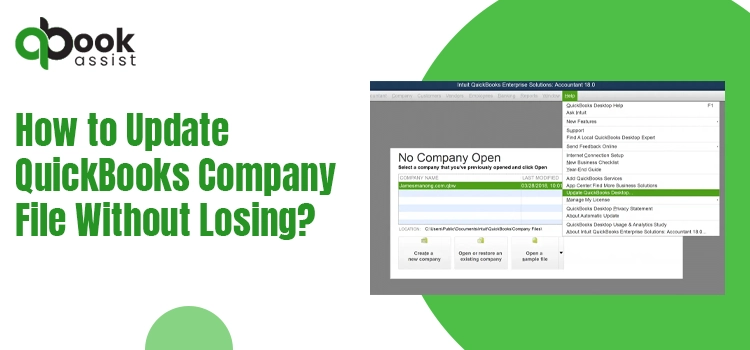
Data loss is one of the major concerns for businesses when upgrading QuickBooks Desktop. Fortunately, updating a QuickBooks company file can help reduce the risk of data loss and unauthorized access. By creating a backup and following the correct procedure to update QuickBooks company file, you can ensure your accounting records remain secure.
In this guide, we have covered the steps to update the QuickBooks company file to the latest version and highlighted key precautions to avoid errors, compatibility issues, and potential data loss.
Why Do You Need to Update a QuickBooks Company File?
Updating a QuickBooks company file to the latest version offers numerous benefits.
- Improved Security-
Updates help you keep your accounting data secure by fixing vulnerabilities and improving protection.
- Use New Features-
For using the new features in the latest version of the QuickBooks software, the company file must be updated to ensure compatibility.
- Better Performance-
Another advantage is that the updated company file usually performs better and reduces the chances of encountering software errors or file corruption.
- Compatibility-
The updated company file is compatible with the latest QuickBooks Desktop versions and connected services.
Precautions Before Updating Your Company File
To update the QuickBooks company file smoothly, follow these best practices.
- Ensure you have created a complete backup of your company file.
- Verify that QuickBooks Desktop is updated to the latest version.
- Make sure that you have proper administrator access.
- Before updating, ensure that all users are logged out of the company file.
- Verify the available disk space to update the company file.
Company File Limitations when upgrading to another product, version, or edition
If you want to use a different QuickBooks Desktop product, version, or edition, it’s essential to understand the company file limitations when upgrading.
| Product | You can open the Premier company files in Pro and vice versa without making any changes to the files. Also, you can upgrade Pro & Premier company files to Enterprise Solutions (ES), but ES company files can’t be opened in Pro or Premier. |
| Version | You can’t open the company file in another region’s QuickBooks Desktop version. |
| Edition | You can easily open the file created in Manufacturing & Wholesale, and Accountant versions with any other edition without causing any data damage. |
How to Update QuickBooks Company File to the latest version
Use the following steps to update QuickBooks company file to the latest version.
Step 1: Prepare your company file
- First, open your original version of QuickBooks. Also, open the company file that you need to update.
- Now, open the Product Information window by pressing the F2 key.
- Go to the File Information section. Note the location where your company file is saved.
Step 2: Update your company file
| Important Point: Both QuickBooks Desktop 2024 and Enterprise 24.0 deliver top-grade security features to safeguard your financial data. After updating your company file to QuickBooks 2024 or Enterprise 24.0, reset the passwords for all non-admin users to a temporary password. In case the non-admin users sign in they’ll be asked to generate a new password. |
- Before proceeding, verify that all users are signed out of your company file.
- Open the latest version of QuickBooks Desktop and move to the File menu.
- Choose the Open or Restore Company.
- Click Open a company file, and hit the Next option. If you have a backup company file (QBB) instead of a company file (QBW), choose Restore a backup copy.
- Now, locate your company file and click Open.
- Important Point: If you fail to find your company file, click on the Start menu and open File Explorer. After this, look for your company file by its name or .qbw file extension. If you are still facing issues in finding the file, check that it’s not hidden.
- Sign in to your company file as the administrator user.
- When done, click Update Now.
- After completing the update, choose Done.
- Important Point: If the move fails and you couldn’t open the file, restore the backup and try again. If the move still fails, then connect with customer support.
You can now access your company file in the latest QuickBooks Desktop version. If you store your company files on the server, you can move them back.
What to do if a QuickBooks Company File Needs to Be Updated?
The error “QuickBooks company file needs to be updated” issue mainly appears when opening a company file after upgrading QuickBooks Desktop. Common error messages include;
“QuickBooks company file needs to be updated.”
or
“QuickBooks Desktop needs to update your company file.”
You must perform the following solutions to fix this issue.
Method 1: Re-register the Reboot.bat file
Re-registering the Reboot.bat file can help resolve installation and update-related issues when upgrading your QuickBooks company file. Follow the steps below to run the file:
- Press Windows + R to open the Run dialog box.
- Type cmd in the search field and click OK to launch the Command Prompt.
- In the Command Prompt window, enter the following path and press Enter:
- “cd C:\Program Files (x86)\Common Files\Intuit\QuickBooks”
- Type reboot.bat and press Enter to execute the file.
- Allow the process to complete. The command window may close automatically once the re-registration is finished.
- After the process is complete, restart your computer and continue with the QuickBooks company file update.
Method 2: Run the Verify & Rebuild Data Utility
The Verify and Rebuild Data utilities in QuickBooks help identify and repair issues within your company file. The Verify Data tool scans the file for data integrity problems, corruption, or inconsistencies, while the Rebuild Data tool automatically fixes the issues detected during the verification process. Perform the following steps to run this too.
Verify Your Company Data
Follow these steps to run the Verify Data utility and check your QuickBooks company file for errors or data corruption:
- Navigate to the Window menu and select Close All to close any open windows.
- Click File, then choose Utilities.
- Select Verify Data to begin scanning the company file for data integrity issues.
Results:
- “QuickBooks detected no problems with your data”: It shows that your data is clean and doesn’t require anything else.
- An error message: If you encounter an error message, look for the specific error message on QuickBooks Desktop support site to get troubleshooting tips to fix it.
- “Your data has lost integrity”: It shows that the data damage was found in the file. You need to rebuild your company file data to fix it.
Rebuild company file data
If the Verify Data tool detects issues in your company file, you can use the Rebuild Data utility to fix them. Before proceeding, QuickBooks will require you to create a backup of your company file.
Important Point: If you use Assisted Payroll, contact QuickBooks Support before rebuilding your data.
Follow these steps to rebuild your company file:
- Go to File > Utilities, then select Rebuild Data.
- When prompted, select OK to create a backup of your company file.
- Choose a location to save the backup, then click OK. Do not overwrite an existing backup file.
- Enter a new file name in the File name field and select Save.
- Once the rebuild process is complete, click OK when you see the message: “Rebuild has completed.”
Final Thoughts
This guide helps you safely update QuickBooks company file while maintaining data accuracy and system compatibility. By following proper backup procedures and update steps, you can minimize the risk of data loss and ensure smooth performance in the latest QuickBooks Desktop version.
To prevent future losses, it’s suggested to update the company file in a timely manner for better performance and to keep your business data secure.
Frequently Asked Questions
Do I need to update my QuickBooks company file after upgrading QuickBooks Desktop?
Yes, you have to update your QuickBooks company file after upgrading QuickBooks Desktop to match the new version. Without updating the file, you can’t access your company data.
Why is my QuickBooks company file not opening after the updates?
QuickBooks company files may fail to open after an update due to incorrect file conversion or version compatibility. Running the update process again or restoring the backup file will help fix the issue.
How long does it take to update a QuickBooks company file?
The time to update QuickBooks company files depends upon file size and the speed of your internet connection.
Will updating the QuickBooks company file delete my data?
No, updating the company file will not delete your company data. But it’s recommended to create a backup of the company file to avoid any future discrepancies.

Recent Posts
Tried Everything? Here’s How to Fix QuickBooks Error Code 80070057
Read MoreQuickBooks Enterprise Online Support: Your Complete Help Guide
Read MoreIntuit QuickBooks Customer Service: How to Contact Support
Read MoreQuickBooks Payroll: Service, Setup, Pricing and Support Guide
Read MoreQuickBooks Error Support: Get Instant Help Via Live Chat or Call
Read More