How to Add accountant to QuickBooks Online| Easy Setup Guide
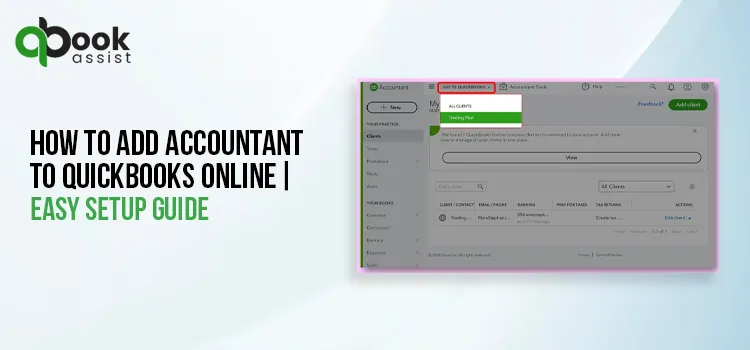
If you’re wondering how to add accountant to QuickBooks Online, the process is simple and straightforward.
QuickBooks Online allows you to invite an accountant in QuickBooks Online without sharing your login credentials. By setting up proper accountant access, you can collaborate in real time, improving bookkeeping accuracy and streamlining financial reporting. Whether you want to add an accountant to QBO, manage QBO user permissions, or troubleshoot common problems while adding an accountant, this guide will help you understand every step clearly.
Why You Should Add an Accountant to QuickBooks Online?
Adding an accountant to QBO will save you from making tax mistakes and provide expert financial oversight. Other reasons for adding an accountant are discussed below.
- Error-Free Tax Preparation-
Your accountant has full access to your financial data to prepare and file the taxes. Thus, it minimizes the need to export and send large spreadsheets.
- Strategic Financial Insights-
An accountant analyzes the raw financial data to uncover trends, optimize tax deductions, and support informed business decisions.
- Real-Time Collaboration-
Both you and your accountant have access to view the same data simultaneously from anywhere. This makes it easier to ask questions and get advice on the go.
- Troubleshooting and Adjustments-
The accountants have enough permissions to undo incorrect bank reconciliations, fix categorization errors, and close your books of accounts.
Difference Between Standard Users and Accountant Users
Here, we have provided you with a table illustrating the difference between Standard users and accountant users.
| Feature | Standard User | Accountant User |
| User Type | Internal Employee or team member | External professional accountant or CPA. |
| Account Creation | The account is created by admin with specific role permissions. | Invitation is sent directly via Accounting Firms section. |
| System Admin Rights | Users can manage specific permissions but doesn’t have rights to change overall system settings. | Accountant users have full financial access but limited/no admin control to change subscriptions or billing plans. |
| Access to Charts of Accounts | Limited or view-only depending on role. | Full access to modify and manage accounts. |
| Bank Feeds Management | Restricted Access | Can manage, categorize, and reconcile bank feeds. |
| Security-Level | Standard role-based restrictions | Elevated access with proper accounting rights. |
Requirements Before You Invite an Accountant to QuickBooks
Before inviting an accountant, make sure that the user has the following access in QBO.
- Primary admin access
- Company admin access
How do I Add an Accountant to QuickBooks Online?
To add an accountant to QBO, use these simple steps;
Step 1: Invite Your Accountant
Here’s how you can invite your accountant to access your QuickBooks Online account.
- Sign in to your QBO account as a primary or company admin user.
- Click the Settings icon and choose Manage Users.
- Now, tap on the Accounting Firms tab.
- Choose the Invite Firm option.
- Provide your accountant’s email address or their firm’s user ID.
- After finishing the steps, click Save.
Note: If you have turned on the two-step verification feature, type the code you received on your mobile number and click Continue.
Step 2: Next Steps
After sending the invitation, you will notice the following actions;
- Email Notification: Your accountant will get an email invitation to access your QuickBooks Online company.
- Acceptance:
- If your accountant is using QuickBooks Online Accountant, they can log in and accept instantly.
- If they don’t have a QBO Accountant user, they will receive an email along with a link to sign up before they can accept it.
- Status Change: Once your invitation is accepted by your accountant, you will notice a change in your status from Invited to Active on the Manage Users page.
Read More:- QuickBooks Online Test Drive
How to Manage Accountant Access in QuickBooks Online?
Managing accountant access in QuickBooks Online enables you to control who can view and work on your accounting data. It also allows you to add user in QuickBooks Online, remove, or update permissions anytime.
Manage Accountant Access
- Log in to your QuickBooks Online account.
- Choose the Settings icon and click Manage Users.
- Move to the Accounting Firms tab or Accountants section, according to your version.
- Now, you will notice a list of accountants who currently have access.
To Add an Accountant
- Choose the Invite Accountant.
- After this, mention your accountant’s email address.
- Send the invitation.
To Remove an Accountant
- First, look for the accountant’s name in the list.
- Select the Edit or Delete option.
- Finally, confirm the removal of the accountant.
To Update Access
If required, remove the existing accountant and then send a new invitation with updated permissions.
Common Problems When Adding an Accountant in QuickBooks
Sometimes, users might struggle while adding an accountant in QuickBooks due to expired or missing email invitations, storage of browsing cache, or incorrect user permissions. Perform the following solutions to fix these problems.
1. Invitation Expired:
The accountant’s invitation automatically expires after 30 days. So, you need to ask your primary admin to delete the pending request from the Manage users page. Then, send a new invitation.
2. Browser/Cache Glitches:
If the accountant invitation fails to load, is grayed out, or results in a blank page, try opening it in an incognito window to fix the issue.
Run the Incognito Window
Opening the invitation in a private (incognito window) will help troubleshoot browser-related issues, as it doesn’t store any history. You can use the following shortcut keys to open the incognito window.
- Google Chrome: Press Ctrl + Shift + N
- Mozilla Firefox: Press Ctrl + Shift + P
- Safari: press Command + Shift + N
Clear the Browsing History
In Chrome
- Open the Chrome browser and click More:
- Choose the Delete Browsing Data option.
- Select a time range, such as Last Hour or All Time.
- Now, pick the information that you want to delete.
- Opt for the Delete Data option.
In Microsoft Edge
- Open the Microsoft Edge browser and click Settings > More: option.
- Select Privacy, search, and services.
- Click the Clear browsing data and tap on Choose what to clear beside the Clear browsing data now.
- Now, select a time range by clicking the drop-down menu.
- Pick the browsing data that you want to clear.
- Finally, hit the Clear Now option.
3. Incorrect Admin Rights-
Remember that only the Primary or Company Administrator can send an invitation to the accounting firm. Also, ensure that the person sending the invite must have enough QuickBooks permissions.
4. Inactive Subscriptions-
If you notice that the add-accountants button or tab is missing, the company’s QuickBooks subscription might lapse. So, to fix the issue, you need to resubscribe to your account settings.
5. Supported Web Browsers-
It is also necessary that you run the supported web browsers to send an invitation to your accountant in QBO. The following are the supported web browsers.
- Google Chrome: Version 78 or newer
- Mozilla Firefox: version 76 or newer
- Microsoft Edge: version 79 or newer
- Safari: version 12 or newer
- Opera: version 68 or newer
- Samsung: version 10 or newer
Final Thoughts
We hope this guide helped you understand “how to add accountant to QuickBooks Online” and improve financial accuracy. With secure QuickBooks Online accountant access, you can collaborate efficiently while maintaining full control over your business data. Proper accountant access setup ensures smoother bookkeeping, tax filing, and long-term financial management.
Frequently Asked Questions
1. Can you add more than one accountant to QuickBooks Online?
Yes, you can add more than one accountant to QuickBooks Online.
2. How many accountants can you have on QuickBooks Online?
In Simple Start, Essentials, and Plus versions, you can add up to two accountants. Whereas QuickBooks Online Advanced users can invite up to 3 accountants.
3. Is the QuickBooks Online Accountant account free?
Yes, a QuickBooks Online Accountant account is completely free for accountants and bookkeepers. You only have to pay when you have to pay for your clients’ QBO subscriptions and then bill them directly.
4. What is an Accountant user in QuickBooks Online?
Accounting users are the ones who have access to certain accounting tools to check their books and make corrections.
5. How do I change the accountant in QBO?
To change the accountant, click Settings menu > Manage Users for account modifications. Select the add accountant option to start the invitation process for new users.

Recent Posts
QuickBooks Payroll: Service, Setup, Pricing and Support Guide
Read MoreQuickBooks Error Support: Get Instant Help Via Live Chat or Call
Read MoreQuickBooks Error 3371 Explained: Common Causes and 7 Effective Fixes
Read MoreHow to Contact QuickBooks Customer Service and Talk to a Live Expert
Read MoreHow to Update QuickBooks Company File Without Losing Data?
Read More