QuickBooks Error 3371 Explained: Common Causes and 7 Effective Fixes
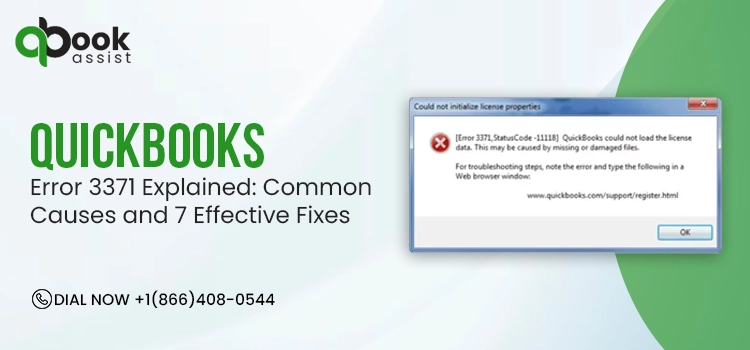
QuickBooks Error 3371 occurs when QuickBooks Desktop fails to initialize the license information required to launch the software. As a result, it may lock users out of QuickBooks and restrict them from accessing important company data. The error is mainly caused due to damaged entitlement files, corrupted QuickBooks installation components, outdated Windows updates, or system-related issues.
If you’re wondering how to fix QuickBooks Error 3371, Status Code 11118, this guide explains the causes and provides effective troubleshooting solutions.
What is QuickBooks Desktop Error 3371?
The QuickBooks Error 3371 mainly occurs when QuickBooks Desktop can’t load your license data. This issue mainly happens due to damaged installation files, an incorrect entitlement folder, or issues with Microsoft components such as MSXML and .Net Framework.
Common error messages that you may notice while encountering this error are:
- Could not initialize license properties Error 3371: QuickBooks could not load the license data. This may be caused by missing or damaged files.
- Could not initialize license properties. [Error 3371, Status Code 11118] QuickBooks could not load the license data. This may be caused by missing or damaged files.
- Could not initialize license properties. [Error 3371, Status Code -1] QuickBooks could not load the license data. This may be caused by missing or damaged files.
What are the Major Causes That Trigger QuickBooks Error Code 3371?
The following reasons can restrict you from opening or activating QuickBooks Desktop and can lead to QuickBooks Error Code 3371.
- You are working on an outdated version of the Windows operating system.
- Damage to the EntitlementDataStore.ecml file prevents QuickBooks from validating the software license.
- Incorrect or missing installation of QuickBooks Desktop.
- Damaged or missing Qbregistration.dat file.
- Windows components, such as Microsoft MSXML or Microsoft .NET Framework, are damaged or corrupted.
- Third-party services or programs are interrupting the update process.
Step-by-Step Instructions to Fix QuickBooks Error 3371 Status Code 11118
Now that you have understood the causes that trigger QuickBooks Error 3371 Status Code 11118, let’s look into the troubleshooting methods to fix it. Therefore, go through the following steps in the same manner as instructed.
Solution 1: Update Windows to Fix QuickBooks Error 3371 on Windows 10 and Windows 11
Trying to run or activate QBDT on the outdated version of the Windows operating system may create compatibility issues and trigger QuickBooks Desktop Error 3371.
Let’s download and install the latest Windows update for seamless functioning.
- Click the Start menu, type Settings, and hit Enter.
- Choose the Check for updates option.
- If you notice that the updates are available, select Download & Install. Wait for some time until the Windows updates get installed.
- Lastly, restart your computer to apply these updates successfully to Windows.
Solution 2: Run the 3371 Error Fix from the QuickBooks Tool Hub
The 3371 Error Fix utility within QuickBooks Tool Hub is specifically designed to diagnose and repair damaged licensing and entitlement files that trigger QuickBooks License Error 3371.
Note: Before running this tool, it’s suggested to download and install the latest version of QuickBooks Tool Hub 1.6.0.8.
- Click on the QuickBooks Tool Hub icon to open it.
- Choose the Installation Issues tab.
- Navigate to 3371 Error Fix, followed by OK.
- Finally, try to run QuickBooks Desktop and then open your company file.
If you are still experiencing the QuickBooks License Error 3371, try the next solution.
Solution 3: Delete the entitlement data store file
The entitlement file is the one that stores license information for QuickBooks and tells QuickBooks that your product is valid and activated. If the file becomes damaged or corrupted, QuickBooks may fail to verify the product license and display QuickBooks Error 3371 Status Code 11118.
- Click the Start menu, type Run in the search field, and press the Enter key.
- Now, type “C: \ ProgramData \ Intuit \ Entitlement Client \ v8” and hit the Enter key. If you can’t open this folder, type C: \ ProgramData \ Intuit \ Entitlement Client \ v6 to open it manually.
- Locate the EntitlementDataStore.ecml. Then, right-click on the file and choose Delete > Yes to confirm.
- Open QuickBooks and then your company file.
- At last, perform the instructions given on the screen to register QuickBooks again.
Solution 4: Create the qbregistration.dat file
Important Point: If you have installed multiple versions of QuickBooks Desktop, it’s a must to add an additional copy of the initialized text in the qbregistration.dat file and then paste the additional copies. Once done, replace the boldface items in the new section with the appropriate values for each QuickBooks version.
- Navigate to the QuickBooks folder where the qbregistration.dat file is located.
- C:\ProgramData\Common Files\Intuit\QuickBooks
- Quick Tip: Display hidden files and folders if you can’t see the folders listed.
- If you see that the qbregistration.dat file already exists, rename it to qbregistration.old.
- After this, open Notepad.
- Open the Run window by pressing Windows + R.
- Type Notepad in the Open field, and select OK.
- Now, type the following text into Notepad.
- Note: You will see that the bold red text will appear as regular text in Notepad. After typing the text into the Notepad, replace the bold red items accordingly.
- xx.xx
- Replace with 33.0 if you have QuickBooks Desktop 2023
- Replace with 32.0 if you have QuickBooks Desktop 2022
- Replace with 31.0 if you have QuickBooks Desktop 2021
- Replace with 30.0 if you have QuickBooks Desktop 2020
- version
- Replace with pro if you have QuickBooks Pro.
- Replace with superpro if you have QuickBooks Premier (not Accountant Edition).
- Replace with accountant if you have QuickBooks Premier Accountant Edition.
- Replace with bel if you have QuickBooks Enterprise Solutions (not Accountant Edition).
- Replace with belacct if you have QuickBooks Enterprise Solutions Accountant Edition.
- 000-000
- Replace with your QuickBooks installation product number.
- 0000-0000-0000-000
- Replace with your QuickBooks license number.
- At last, save the file with the name qbregistration.dat.
- Click the File and then Save option.
- Choose All Files from the Save as type list.
- Pick the same directory specified in step 1 (C:\ProgramData\Common Files\Intuit\QuickBooks).
Solution 5: Manually fix Windows components
Windows components such as Microsoft MSXML and .NET Framework are required to run the QuickBooks application smoothly. If these components get damaged or corrupted, users may encounter QuickBooks license error 3371. So, to fix the issue, you need to repair those components using these steps.
a. Repair Microsoft MSXML Components
Register the MSXML components using these steps if you use a 64-bit operating system.
- Click the Start menu, type cmd, and hit the Enter key.
- Right-click on the cmd, and choose Run as Administrator.
- Type “cd \ windows \ syswow64” into the C: prompt window.
- Again, type regsvr32 MSXML6.dll and hit the Enter key.
- Now, try to install QuickBooks Desktop again.
Register MSXML by performing these steps for a 32-bit operating system.
- Open the Run command window and type cmd. Then, hit the Enter key.
- After this, type regsvr32 MSXML6.dll and hit the Enter key.
- Lastly, install your QuickBooks Desktop again.
b. Repair or Reinstall Microsoft .NET Framework
These steps are only applicable to Windows 10 or the latest versions.
- Close all the open programs on your computer.
- Click the Start menu, type Control Panel, and hit the Enter key.
- Move to the Programs and Features option.
- Choose Uninstall a Program.
- Now, mark the checkbox of Turn Windows features on or off.
- Search for the .NET Framework on the list.
- Check the settings for both .NET Framework 4.5 (or later) and .NET Framework 3.5 SP1.
Note: Steps for the .NET Framework 4.5, 4.6, 4.7, and 4.8 are the same.
c. Check Net Framework 4.5 (or later)
If the checkbox for .NET Framework 4.5 (or later) isn’t selected:
- Tick the checkbox of .NET Framework 4.5 (or later) to turn it on.
- Hit OK to save the changes.
- Restart your computer.
If the .NET Framework 4.5 (or later) checkbox is already checked:
- Tick the checkbox of .NET Framework 4.5 (or later) to turn it off. Make sure to turn it back on.
- After this, click OK to save the changes.
- Restart your computer.
- Once you log in to Windows, perform the on-screen instructions to turn on .NET Framework 4.5 again.
d. Check .NET Framework 3.5 SPI
If the checkbox for .NET Framework 3.5 SP1 isn’t checked:
- Tick the checkbox for .NET Framework 3.5 SP1 to enable it.
- Now, tap on OK to save the changes.
- Restart your computer.
- Once you log into Windows, follow the same steps as above to turn .NET Framework 3.5 SP1 on again.
Solution 6: Run the QuickBooks Install Diagnostic Tool
If something went wrong during the QuickBooks install, it could cause problems when you try to use it. Run the QuickBooks Install Diagnostic Tool to fix common install issues.
- Download and install the updated QuickBooks Tool Hub.
- Now, click on the QuickBooks Tool Hub icon to open it.
- Choose the Installation Issues tab.
- Navigate to QuickBooks Install Diagnostic Tool. Then, allow the tool to run.
- Once the tool finishes the repair, relaunch your computer. Then, start QuickBooks Desktop and open your company file.
- Finally, update your QuickBooks to the latest release. This will ensure you have the most recent fixes and security updates.
Solution 7: Reinstall QuickBooks Desktop to Fix Error 3371
A fresh reinstallation of QuickBooks Desktop removes corrupted files and restores system integrity. Follow the steps below to resolve QuickBooks Desktop Error 3371 by performing a clean installation.
Step 1: Uninstall QuickBooks Desktop
- Press the Windows logo key to open the Start menu. Type Control Panel and open the Control Panel window.
- Navigate to Programs and Features or Uninstall a Program.
- Pick the QuickBooks Desktop version you want to delete from the list of programs.
- Now, click Uninstall/Change, remove, and select Next.
- If you can’t find this option, sign out and sign back in to Windows as administrator.
Step 2: Install QuickBooks Desktop again
Now that you have successfully uninstalled QuickBooks, try to install QuickBooks Desktop again. After installing QuickBooks again, it will automatically install new folders and rename your old ones.
Final Words
By following the solutions outlined above, you can easily fix QuickBooks Error 3371 and restore access to QuickBooks Desktop. Whether the issue is caused by damaged entitlement files, Windows component failures, or licensing problems, these troubleshooting methods can help you fix the error.
To prevent this error, keep QuickBooks and Windows updated, maintain regular backups, and verify that your software license is valid and properly activated.
Frequently Asked Questions
1. Why am I getting a license error 3371?
The license error 3371 usually occurs when QuickBooks can’t load or validate your license data. This issue is caused by various reasons, including missing or damaged installation files, corrupted Microsoft components, and antivirus quarantines.
2. What is QuickBooks error 3371 status code 11118?
The QuickBooks error 3371 status code 11118 is a licensing issue that triggers when QuickBooks fails to load your license data. This prevents QuickBooks from verifying the product license, causing the application to fail during startup and preventing users from accessing the software.
3. What is the EntitlementDataStore.ecml file in QuickBooks?
The EntitlementDataStore.ecml file is used to store QuickBooks licensing information. QuickBooks may display Error 3371 during startup if the EntitlementDataStore.ecml file becomes damaged or corrupted.
4. How can I prevent the QuickBooks Error 3371 in the future?
To avoid the QuickBooks Error 3371, keep your QuickBooks and Windows updated. Also, maintain the proper backups, avoid improper shutdown, and use supported system configurations.
5. Does QuickBooks Error 3371 affect company data files?
QuickBooks Error 3371 primarily affects software activation and licensing. While it does not typically damage company data files, creating regular backups is suggested as a best practice.

Recent Posts
QuickBooks Payroll: Service, Setup, Pricing and Support Guide
Read MoreQuickBooks Error Support: Get Instant Help Via Live Chat or Call
Read MoreHow to Contact QuickBooks Customer Service and Talk to a Live Expert
Read MoreHow to Update QuickBooks Company File Without Losing Data?
Read MoreHow to Fix QuickBooks Error 80029c4a (Error Loading Type Library/DLL)
Read More