Learn How to send Direct Deposit paychecks in QuickBooks Desktop Payroll
Direct deposit is one of the easiest and safest methods to pay your employees and contractors without handwriting or printing paychecks. However, it’s essential to set up and use QuickBooks Direct deposit, make sure that your business has a U.S. bank account that’s set for bank transfer ACH transactions. Read this guide to learn more about how to send direct deposit paychecks in QuickBooks Desktop Payroll and how to set up company payroll for direct deposit.
How to Set Up Your Company Payroll For Direct Deposit In Easy Steps?
Before paying the employees or contractors via direct deposit, it’s essential to set up the company for direct deposit. Here’s how to do so.
Direct Deposit Setup Necessities
You must have the following things to set up direct deposit in QuickBooks.
- Employee’s or contractor’s bank account details
- Business name, address, and EIN
- Online bank details, or your company’s bank routing and account numbers.
- Principal officer’s Social Security number, date of birth, and home address.
First Step: Connect Your Bank Account
You can link your bank account instantly via Instant Bank Verification, which allows you to access direct deposit. Use the following steps for your product.
New Payroll User
- Move to the All Apps > Payroll > Overview > Get Started option.
- When you are in the Business section, click the Edit menu.
- Now, mention your federal tax ID number and other missing details. Then, hit the Next option.
- Click the Add new bank account option and locate your bank name. Herein, you must provide your online banking user ID and password.
- If you are unable to connect automatically, hit the Enter bank info manually option. Also, provide your routing number and account numbers. Then, hit the Save option.
- Once you’re done, hit the Accept and Submit option.
Important Tip: Whenever you update your bank details, insert the new code sent to your phone number to save the changes.
QuickBooks Desktop Payroll
- Initially, launch the QuickBooks application and log in using the QBO login details.
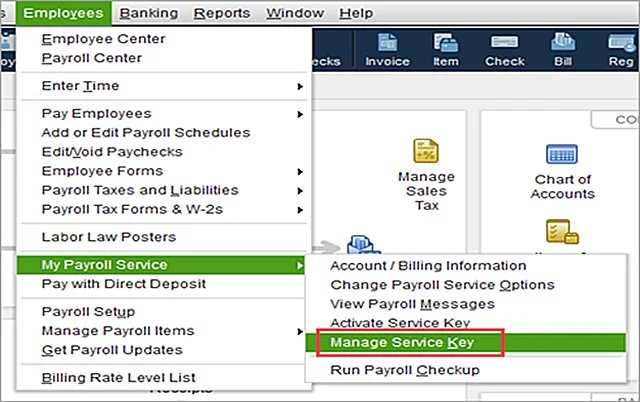
- Move to Employees > My Payroll Service > Activate Direct Deposit > Get Started option.
- If you can’t get the Get Started screen;
- Browse to the I’m the admin, and I’m the primary person who can …… and then mention the admin’s email address or User ID.
- Click on Continue and provide the email or User ID and password for your Intuit account. Then, hit the Sign In tab. If you don’t have an Intuit account, tap the Create an Account link. If you have previously logged in to your Intuit account in QuickBooks, you will not get this screen.
- Choose the Get Started option.
- Browse to the Business tab, click Start, and complete the necessary details.
- Provide the Principal Officer details and hit Next > Add new bank account.
- Also, provide your bank name and online bank details, or bank routing and account numbers.
- Generate a new PIN that you can use every time while sending payroll.
- Now, enter the PIN twice for confirmation and then click Submit.
- Hit the Next > Accept and Submit option.
- When asked, confirm the Principal officer’s full Social Security Number and click Submit again.
Once the submission is done, you will get a confirmation message. If your bank account gets connected instantly, you can go straight to the 3rd step. If not, then first verify your bank account.
Second Step: Verify Your Bank Account (if required)
If you can’t connect your bank account instantly, Intuit will send a test debit of less than $1.00 to your account. After this, it may take around two business days to reflect in your bank account. Once it gets debited, mention the exact amount in QuickBooks for authorizing your account for payroll transactions.
Third Step: Set Up Employees & Contractors For Direct Deposit
After setting up and verifying your company’s bank account, you can add your employees and contractors bank details.
3.1 To pay employees, set up direct deposit for them
The following are the stepwise instructions to pay employees via direct deposit.
Step 1: Set Up Direct Deposit for your company
You must perform the above steps to set up direct deposit for your company.
Step 2: Get a Direct Deposit Authorization Form
You must need the bank details from your employee to set up direct deposit for them. To get this information, you can either use the voided check or a direct deposit authorization form.
QuickBooks Online Payroll
Your employees have to complete the form, sign it, and then date a direct deposit authorization form. Also, you have to attach a voided check from their bank account. Make sure that the voided check is not a deposit slip. It is used for record purposes only.
- Navigate to the All Apps > Payroll > Payroll Taxes > Filings > Employee Setup option.
- Now, beside the Authorization for Direct Deposit feature, click the Bank Verification.
- At last, hit the View option.
QuickBooks Desktop Payroll
You must request a voided check or specific banking details, like bank account and routing number, directly from your employee.
Step 3: Add Direct Deposit Information for your Employee
Once the company account is set up and you have your company details, add it to your account.
QuickBooks Online Payroll
To include the employee’s direct deposit information, use these steps.
- Click the All Apps > Payroll > Employees menu.
- Choose your employee and from the Payment method area, click Start or Edit.
- Thereon, tap on the Direct Deposit option and then select a direct deposit method.
- Direct deposit to one account
- Direct deposit to two accounts (split by dollar amount or percentage)
- Direct deposit with a balance as a check
- Now, provide the routing and account numbers from the employee’s voided check.
- When all the changes are done, tap on Save.
QuickBooks Desktop Payroll
- Initially, move to the Employees menu and click Employee Center.
- Choose the employee’s name, and hit the Payroll Info tab.
- Hit the Direct Deposit button and circle the checkbox of Use Direct Deposit for [employee’s name].
- Now, select whether you wish to deposit the paycheck into one or two accounts.
- Herein, provide the employee’s financial institution details like
- Bank Name
- Routing No.
- Account No.
- Account Type
- If you select two accounts, provide the amount or percentage for the first account. Then, the reminder will directly go to the second account.
- At last, click OK to save and then enter your direct deposit PIN when asked.
Result
Once you’re done, the employee’s next paycheck will be issued via direct deposit.
3.2 To pay contractors, set up and manage direct deposit for your contractors
To set up the direct deposit feature for your contractors, perform these steps.
QuickBooks Online Payroll
You can invite your contractor to add your own W-9 and bank details. Otherwise, you can also add it yourself.
- Move to the All Apps > Payroll > Contractors.
- Now, for a new contractor, hit the Add a Contractor option. Otherwise, you can opt for an existing contractor.
- After this, click the Bank Account option.
- As required, mention the following details:
- Account Number
- Account Type
- Routing Number
- Account holder Phone Number
- Account holder Full Name
- Finally, click Save to confirm the changes made.
QuickBooks Desktop Payroll
- Initially, launch the Vendor Center and then double-click on the vendor.
- Tap on the Additional Info tab and hit the Direct Deposit option.
- Circle the checkbox of Use Direct Deposit for:[Vendor Name] and mention the bank details.
- Choose the Send confirmation direct deposits to [email address] if you’d like a payment confirmation. Then, QuickBooks will send you an email two days prior to the direct deposit posting to your contractor’s account. Also, ensure that the following details are included in the email.
- Your company name
- The amount of payment
- The date the direct deposit will be posted to your contractor’s account.
- The last four digits of the independent contractor bank account number.
- At last, provide your Direct Deposit PIN and click the Continue option.
Once the above steps are completed, you’re all set to pay your team with direct deposit.
How to Send Direct Deposit Paychecks in QuickBooks Desktop Payroll?
After setting up the company for direct deposit, let’s now understand how to send direct deposit paychecks in QuickBooks Desktop Payroll.
Send Payroll to Intuit
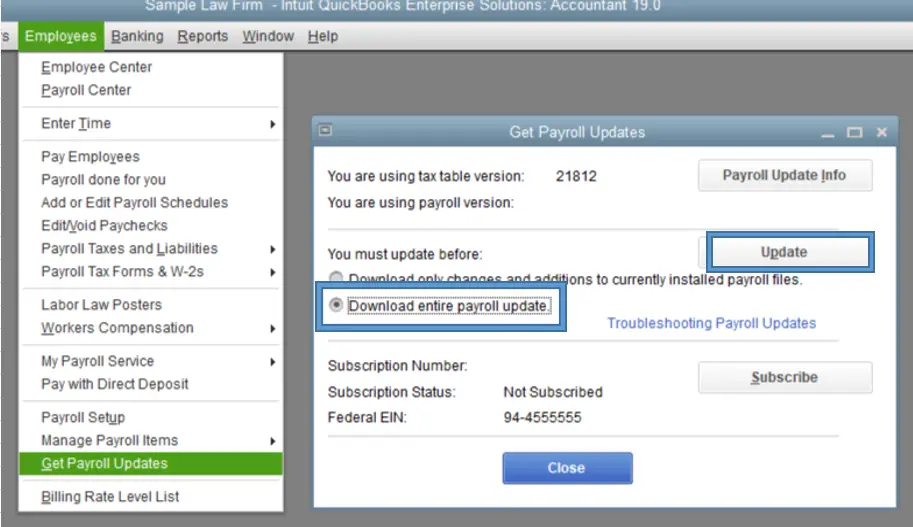
- Initially, move to the Employees > Send Payroll Data option.
- When you are in the Send/Receive Payroll Data window,
- Click View to check the direct deposit paychecks before sending them.
- Click the Send All option to send the direct deposit payroll.
- After this, mention your Direct Deposit PIN and click OK. When you get the message, “QuickBooks can’t find the following account”, implement these steps:
- Choose the bank account you use for payroll fees by clicking the Accounts drop-down menu when you have just changed your direct deposit bank account.
- Pick the Payroll Service Asset Account by hitting the Accounts drop-down menu. In case you are sending a zero payroll after voiding a paycheck. QuickBooks will assess this account for posting any tax credit (overpaid) as a result of the void.
Why is QuickBooks Direct Deposit Not Working?
Users often face the QuickBooks Direct Deposit not working issue due to an incorrect bank account or routing number on the employee profile. It may also occur due to an issue or hold at the employee’s bank, or when you have submitted the payroll after the 5 PM Pacific Time cutoff.
Conclusion
We hope that you have now understood how to send direct deposit paychecks in QuickBooks Desktop Payroll. Thus, it will help to pay your employees on the same day without any hindrance. If you are still facing any issues, check your bank details and make sure you have provided all the details correctly.
For further guidance, you must connect with our Qbookassist professionals for immediate help.
Frequently Asked Questions (FAQ’s)
Question 1: Which version of QuickBooks Payroll includes same-day direct deposit?
Ans. The QuickBooks Online Payroll Premium and QuickBooks Online Payroll Elite both provide the same-day direct deposit feature.
Question 2: When to submit QuickBooks Payroll for direct deposit?
Ans. It is mandatory that you submit QuickBooks Payroll for direct deposit by 5:00 PM PT (8:00 PM PT) at least two banking days before the check date to pay on time. However, for the next day submission, you can submit it by 5:00 PM PT the day before payday. Herein, the weekends and holidays will not be counted as your banking days.
Question 3: How to verify direct deposit in QuickBooks Desktop?
Ans. To verify the direct deposit in QuickBooks Desktop.
- Launch QuickBooks and log in as a QuickBooks admin.
- Go to the Employees > My Payroll Service > Activate Direct Deposit.
- Log in to your Intuit account and provide the debit amount twice, and click Verify.
- Provide the payroll PIN, click the Submit, and then the OK tab.
Question 4: Do direct deposits have limits?
Ans. Yes, there is a company’s total limit and a per-employee limit to safeguard against fraud. The QuickBooks Online Payroll users can view the limit in Payroll Settings below the Direct Deposit section. However, you can request a direct deposit limit increase when your payroll crosses its limit or for paying bonuses.
Question 5: Can I pay anything else with direct deposit?
Ans. No, you can only access the Direct deposit feature to pay your employees and contractors. You have to access a different payment method to pay off any other company expenses.
Question 6: What are the prerequisites required for setting up direct deposit for contractors?
Ans. To set up direct deposit for contractors, you must have:
- A valid and active QuickBooks subscription.
- Your company’s direct deposit setup.
- Your contractor’s bank account details.

Recent Posts
Tried Everything? Here’s How to Fix QuickBooks Error Code 80070057
Read MoreQuickBooks Enterprise Online Support: Your Complete Help Guide
Read MoreIntuit QuickBooks Customer Service: How to Contact Support
Read MoreQuickBooks Payroll: Service, Setup, Pricing and Support Guide
Read MoreQuickBooks Error Support: Get Instant Help Via Live Chat or Call
Read More