QuickBooks Error PSXXX: How to Fix Payroll Update Errors
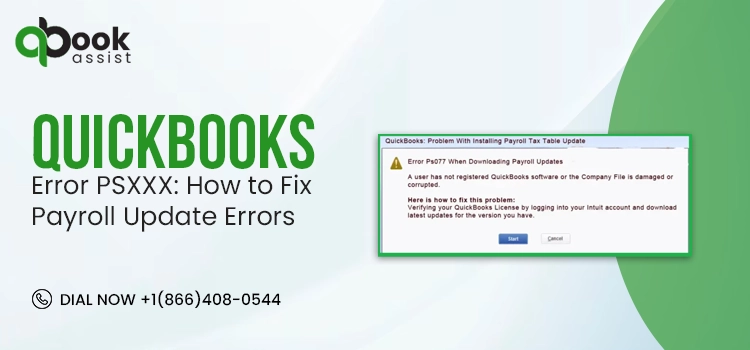
It is essential that you keep your payroll software up to date for accurate tax calculations and smooth payroll processing. However, you may sometimes run into QuickBooks error PSXXX while downloading or installing payroll updates. This issue usually displays with messages like “Problem installing payroll tax update” and commonly includes errors such as PS032, PS033, PS036, and PS107.
QuickBooks Payroll update error PSXXX can result from an inactive payroll subscription, damaged CPS files, firewall restrictions, or internet connectivity issues. In this guide, we’ll explain the causes behind the QuickBooks PSXXX error series and provide proven solutions to resolve payroll update errors in QuickBooks Desktop.
What is QuickBooks Error PSXXX?
QuickBooks error PSXXX belongs to payroll update errors that occur in QB Desktop Payroll. These errors usually indicate a problem with payroll verification, corrupted files, or incomplete updates.
You can notice the following PSXXX error codes during the download of payroll tax table updates in QuickBooks Desktop.
| PS033 | PS101 |
| PS036 | PS107 |
| PS032 | PS034 |
The error messages that appear while downloading the payroll updates are as follows;
- QuickBooks encountered a problem updating payroll.
- Payroll update did not complete successfully.
- An internal file in QuickBooks has become unreadable [PS107].
- A user has not registered QuickBooks software or the company file is damaged or corrupted.
- QuickBooks can’t read your payroll setup files. [PS033]
- QuickBooks error PS034: The payroll update did not complete successfully.
What You Might Experience When Dealing With Error PSXXX
- Payroll update fails to complete.
- QuickBooks PSXXX error message appear repeatedly.
- Tax table updates fail to download, or the update process stop in midway without any progress.
- QB application begin to freeze during the update installation.
- Payroll service become unresponsive.
Why Does QuickBooks Payroll Update Error PSXXX Occur?
Several technical and configuration issues may cause QuickBooks Payroll Update Error PSXXX while downloading and installing payroll updates. Understanding the causes behind this error will help you find the correct troubleshooting methods to fix the issue.
Here are some of the major causes that include;
- Damaged files in the CPS folder.
- Issues with the configuration of internet connectivity.
- Inactive or invalid payroll subscription.
- Incorrect Firewall settings may block payroll updates in QB Desktop.
- Third-party security services are interfering with software updates.
- Restricted user permissions in Windows.
- An outdated QuickBooks Desktop version.
How to Resolve Payroll Update Error PSXXX in QuickBooks Desktop
After identifying the causes of Payroll Update Error PSXXX in QuickBooks Desktop, you can now follow the troubleshooting methods below to effectively fix the error and restore smooth payroll update functionality.
Method 1: Check Your Payroll Service Subscription
A valid and active payroll subscription is essential for the smooth installation of payroll tax table updates and to ensure you are using the latest tax tables. If the subscription is inactive or expired, it may result in payroll update issues. Follow the steps below to verify your payroll subscription.
- Before starting, close all your company files and then restart your computer.
- Open QuickBooks and go to Employees.
- Choose My Payroll Service and click Manage Service Key.
- Click Edit, and check your service key number. If it’s incorrect, enter the right one.
- Hit Next, unmark the Open Payroll Setup box, and click Finish.
- This will start downloading the entire payroll update. If the issue continues, move to the next solution.
Method 2: Register & Update Your QuickBooks Desktop
Having the latest security and software improvements will help enhance your accounting operations. Follow these steps to verify if your software is registered.
- Hit the F2 key to bring up the Product Information window.
- Look beside the license number, whether it shows Activated.
Important Tip: If it doesn’t show Activated, then register QuickBooks Desktop.
Follow these steps to register QuickBooks Desktop,
- Open QuickBooks Desktop.
- Move to the Help menu and select Activate QuickBooks.
Now, perform the steps given on the screen to verify the software information. After registering QuickBooks to receive updates, try to update QuickBooks and payroll to the latest release.
Method 3: Repair Files in CPS Folder
Repairing the files in the CPS folder will help remove corrupted payroll tax table files and then replace them with new ones after renaming. Thus, it helps fix the QuickBooks error PSXXX series errors.
- Open the File Explorer by pressing Windows + E.
- Choose This PC and move to the Local Disk C.
- After this, run the Program Files (x86) and open the Intuit folder.
- Now, launch the QuickBooks Desktop folder and verify if it matches your current version.
- Go to the Components tab and select the Payroll folder.
- Right-click the CPS folder and click Rename. Mention a new folder name and hit Enter to change the name successfully.
Method 4: Repair Your QuickBooks Desktop
QuickBooks File Doctor is a perfect utility introduced by Intuit that helps fix the damaged program files or corrupted installation. Use the following steps to run the tool and resolve common program and installation issues.
Note: Before using these tools, make sure you have downloaded and installed the latest QuickBooks Tool Hub version.
A. Run Quick Fix My Program
- Open the QuickBooks Tool Hub and click Program Problems.
- Choose Quick Fix My Program.
- Start QuickBooks Desktop and then open your company file.
B. Run QuickBooks Install Diagnostic Tool
If anything went wrong during the installation of QuickBooks Desktop, it may create issues while using the application. So, you must run the QB Install Diagnostic Tool to address the common installation issues.
- Launch the QuickBooks Tool Hub and click Installation Issues.
- Choose QuickBooks Install Diagnostic Tool and let the tool run.
- After running the tool, relaunch your computer and run QuickBooks Desktop. Then, try opening your company file.
- Next, try to update your QuickBooks to the latest release. This will ensure that you have the latest fixes and security updates.
Method 5: Add the Defender Exclusion or Turn Off Windows Defender Antivirus Protection
The QuickBooks Tool Hub includes a feature that automatically adds QuickBooks Desktop files to the Microsoft Defender exclusion list, preventing the antivirus from scanning those files during installation or updates.
Tips:
- Make sure to log in to Windows with administrative rights.
- Ensure that the QuickBooks Tool Hub is previously installed on your computer.
- Select Cancel to stop the ongoing update.
- Exit from the QuickBooks program.
- Open the QuickBooks Tool Hub. If you aren’t able to see the tool, download and install the latest QuickBooks Tool Hub version.
- Move to the Installation Issues tab.
- Now, hit the Add Defender Exclusion. If you see that this option is grayed out, it means that you don’t have admin rights on the PC. So, you have to ask your admin to apply these steps or get the access. You may also ask your admin to perform these steps.
- Relaunch your computer and open QuickBooks.
- At last, try to get the latest QuickBooks payroll update once again.
Method 6: Reinstall QuickBooks in Selective Startup Mode
Reinstalling QuickBooks Desktop in selective startup mode will prevent third-party apps from interfering with the payroll update process.
A. Switch to Selective Startup
To avoid interference from the background running apps, switch to Selective Startup mode. If you aren’t sure while performing these steps, connect with your computer’s manufacturer or a Windows expert.
- Open the Run window by hitting Windows + R keys.
- Type msconfig into the search box and click OK.
- Head to the General tab and select Selective Startup and Load system services.
- Choose the Services tab.
- Circle the checkbox of Hide all Microsoft Services.
- Hit the Disable All option and clear the Hide All Microsoft Services checkbox.
- Tap the Windows Installer option from the list of services.
- Select OK and click Restart from the System Configuration window.
B. Uninstall or Install QuickBooks Desktop
- Reinstall QuickBooks Desktop.
- Now, hit the Windows + R keys to bring up the Run window.
- Type msconfig into the text box and click OK.
- Move to the General tab and select Normal Startup > OK.
- Click Restart from the System Configuration window.
Method 7: Configure Windows Firewall For QuickBooks
Firewall and antivirus programs are used to safeguard your device from any unauthorized access and harmful files. However, they may sometimes block QuickBooks Desktop services and prevent payroll updates from downloading successfully, which can trigger Payroll update error PSXXX. To fix this issue, you need to ensure that QuickBooks files and services are allowed through your security software.
Follow these steps to configure the firewall settings.
Add Firewall Port Exception
If you are running multiple versions of QuickBooks on the same device, perform the following steps.
- Click on the Windows Start menu and type “Windows Firewall”.
- Open the Windows Firewall and select Advanced Settings.
- Right-click on Inbound Rules and hit New Rule.
- Select the Port and then the Next option.
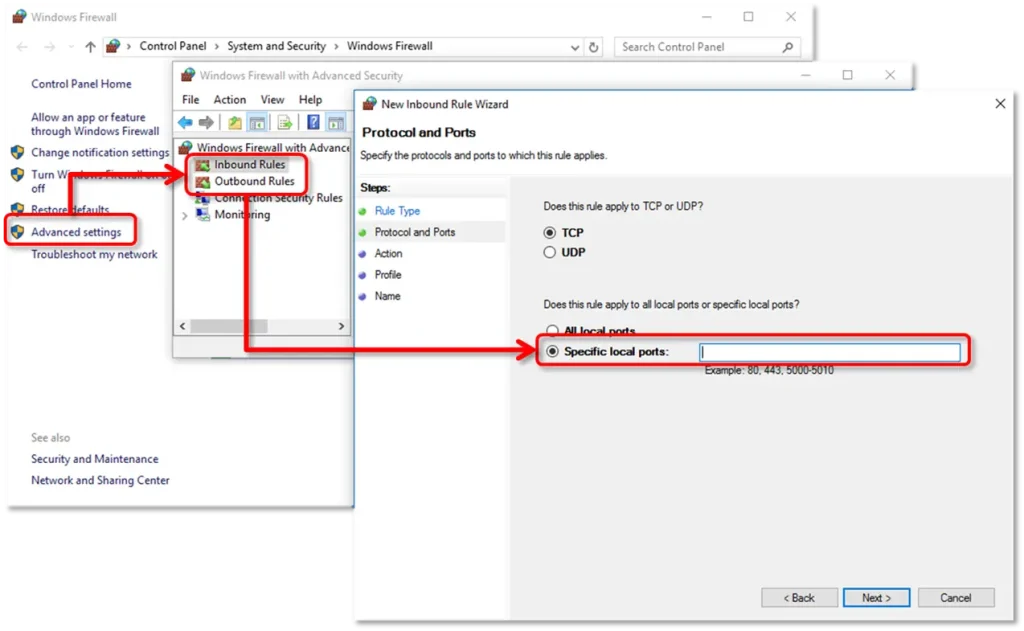
- Verify that the TCP checkbox is marked.
- Now, provide the specific ports for your QuickBooks year version:
- QuickBooks Desktop 2020 and later: 8019, XXXXX.
- QuickBooks Desktop 2019: 8019, XXXXX.
- QuickBooks Desktop 2018: 8019, 56728, 55378-55382.
- QuickBooks Desktop 2017: 8019, 56727, 55373-55377.
| Note: QuickBooks Desktop 2019, 2020, and later versions use dynamic firewall ports that are automatically alloted during installation. These ports are specifically allocated to QuickBooks Desktop to built a secure network communication and ensure the application has exclusive access to a designated port for smooth multi-user connectivity and uninterrupted data exchange. |
- To find the dynamic port number, open the Start menu and search for QuickBooks Database Server Manager. Launch the QBDBMgrN utility and click the Port Monitor tab. Locate your QuickBooks Desktop version and write down your port number. You can then use this port number while configuring firewall exceptions.
Note: You can modify the assigned port number by choosing the Renew option. After changing the port, click the Scan Folders tab and select Scan Now to refresh the firewall permissions. Always, remember that port renewal is only available for QuickBooks Desktop 2019 and later versions. Whereas, the older versions doesn’t support this feature.
- After entering the port number, click Next.
- Select Allow the Connection and then hit Next again.
- Ensure all network profiles are checked when prompted, then hit Next.
- Create a new rule and assign it a name such as QBPorts(year).
Once the configuration is complete, click Finish to save the rule.
Repeat the same process to create Outbound Rules by selecting Outbound Rules instead of Inbound Rules in Step 4.
Finally, open QuickBooks Desktop and switch to multi-user mode. You can also test QuickBooks over the network from one of the host systems.
Create Windows Firewall Exceptions for QuickBooks programs
QuickBooks Desktop uses executable (.exe) files to perform various operations and services. If these files are blocked by Windows Firewall, it may interrupt QuickBooks functions and payroll updates. Follow the steps below to create firewall exceptions for each executable file listed in the table.
- Open the Start menu, type Windows Firewall, and launch it.
- Select Advanced Settings, then right-click Inbound Rules and choose New Rule.
- Click Program and then select Next.
- Choose This Program Path and click Browse.
- Locate and select one of the executable (.exe) files from the list, then click Next.
- Select Allow the Connection and hit Next again.
- Create a new rule and name it something like QBFirewallException(name.exe).
Repeat the same procedure to create Outbound Rules by selecting Outbound Rules instead of Inbound Rules in Step 4.
| AutoBackupExe.exe | C:\Program Files\Intuit\QUICKBOOKS YEAR |
| Dbmlsync.exe | C:\Program Files\Intuit\QUICKBOOKS YEAR |
| DBManagerExe.exe | C:\Program Files\Intuit\QUICKBOOKS YEAR |
| FileManagement.exe | C:\Program Files\Intuit\QUICKBOOKS YEAR |
| FileMovementExe.exe | C:\Program Files\Intuit\QUICKBOOKS YEAR |
| QuickBooksMessaging.exe | C:\Program Files\Intuit\QUICKBOOKS YEAR |
| QBW32.exe | C:\Program Files\Intuit\QUICKBOOKS YEAR |
| QBDBMgrN.exe | C:\Program Files\Intuit\QUICKBOOKS YEAR |
| QBServerUtilityMgr.exe | C:\Program Files\Common Files\Intuit\QuickBooks |
| QBCFMonitorService.exe | C:\Program Files\Common Files\Intuit\QuickBooks |
| QBLaunch.exe | C:\Program Files\Common Files\Intuit\QuickBooks |
| QBUpdate.exe | C:\Program Files\Common Files\Intuit\QuickBooks\QBUpdate |
| IntuitSyncManager.exe | C:\Program Files\Common Files\Intuit\Sync |
| OnlineBackup.exe | C:\Program Files\QuickBooks Online Backup |
Best Practices To Avoid QuickBooks PSXXX Errors
The following are the important points you must consider to avoid QuickBooks PSXXX errors in the future.
- Make sure to keep your QuickBooks Desktop updated.
- Your Internet connection must be stable to install the payroll tax table updates uninterrupted.
- Run payroll updates as an administrator.
- Maintain the backup of the company file regularly.
- Check your payroll subscription regularly.
- Avoid interrupting updates midway.
Final Thoughts
QuickBooks error PSXXX can interrupt payroll processing, delay tax updates, and affect employee payments if not fixed quickly. These payroll update issues are commonly associated with corrupted CPS files, inactive payroll subscriptions, firewall restrictions, or outdated QuickBooks Desktop versions. Fortunately, fixing the update error PSXXX in QuickBooks becomes easier by applying the right troubleshooting solutions outlined above.
Regular software updates, proper firewall configuration, and routine company file maintenance can help prevent QuickBooks PSXXX error series errors in the future.
Frequently Asked Questions
What causes PSXXX error codes when downloading payroll updates in QuickBooks Desktop?
The QuickBooks error PSXXX is caused due to various causes including incorrect internet settings, firewall settings blocking payroll updates, or issues with the QuickBooks version.
Why are QuickBooks payroll updates not working?
The QuickBooks payroll updates not working issue may arise due to insufficient user permissions, interrupted downloads, or installation errors.
Why is PS038 a problem in QuickBooks?
QuickBooks error PS038 may occur when paychecks are stuck as “Online to Send”, preventing payroll updates and tax table downloads in QuickBooks Desktop.
What does “Online to Send” mean in QuickBooks?
It means that a paycheck has not successfully synced with Intuit payroll servers. If these paychecks remain stuck, QuickBooks may continuously start displaying PS038.
What is the CPS folder in QuickBooks?
The CPS folder in QuickBooks is used to keep payroll-related update files. If these files get corrupted, payroll updates may fail and trigger PSXXX errors. Renaming the folder forces QuickBooks to create fresh payroll update files.

Recent Posts
Tried Everything? Here’s How to Fix QuickBooks Error Code 80070057
Read MoreQuickBooks Enterprise Online Support: Your Complete Help Guide
Read MoreIntuit QuickBooks Customer Service: How to Contact Support
Read MoreQuickBooks Payroll: Service, Setup, Pricing and Support Guide
Read MoreQuickBooks Error Support: Get Instant Help Via Live Chat or Call
Read More