QuickBooks Payroll Time Tracking for Accurate Employee Hours
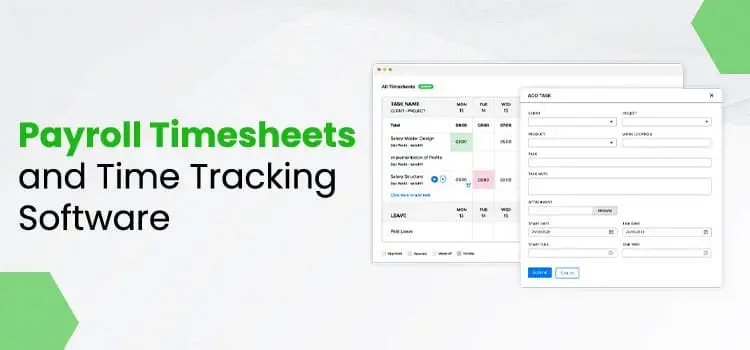
It has become easier for businesses to monitor employee work hours, overtime, and attendance more efficiently by using QuickBooks Payroll time tracking to streamline their payroll tasks. With QuickBooks Time, companies can automate timesheets, minimize payroll errors, and track employee time through mobile apps, desktop access, and kiosk-based time-tracking systems.
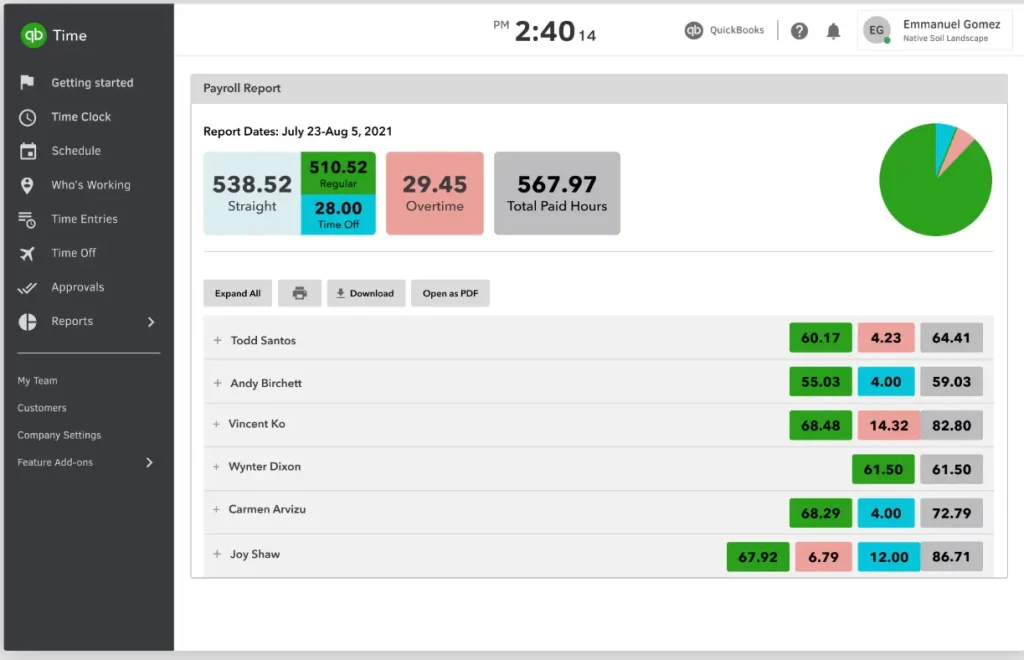
In this guide, we’ll explain how to set up QuickBooks payroll time tracking, manage employee hours, and improve payroll accuracy using QuickBooks Time and TSheets features.
What is QuickBooks Payroll Time Tracking?
QuickBooks Payroll Time tracking is a feature that is used to connect employee hours with your payroll systems. It replaces manual timesheets by automatically logging clock-ins, breaks, and project hours, allowing data to flow directly into the software. Thus, it lets you calculate employee paychecks accurately.
How to Set Up Your QuickBooks Time Tracker Login
By setting up your QuickBooks Time login, you can seamlessly connect your payroll, accounting, and time-tracking. It will help in reducing inefficiencies and can save up to 4 hours a week with QuickBooks Time.
Step 1: Set up your company
1.1 Software Integration
It is advised to first integrate your account with your payroll or accounting software.
Point: If you are using QBO, you need to set up your QuickBooks Time account.
1.2 Company Details
- After the QuickBooks Online Login time, select Company Info.
- Now, add or update your company information.
- Company name
- Company website
- Company’s Street Address
- Navigate to Admin Contact > Custom Options.
- Upload a custom company logo.
- Add your company logo.
- Select Company settings from QuickBooks Time.
- Hit the Company Details option.
- Pick an image and tap on Open.
- Suggested file type: transparent png
- Suggested file size: 150×150 pixels
- After this, drag the image and adjust placement.
- Use the slider and scale the image.
- Choose the Upload option.
1.3 Account & Billing
- Choose the Manage Subscription.
- Click the Manage Billing & Subscription in QuickBooks Time.
- Log in to QuickBooks as a primary admin.
- Select your profile and click Billing and Subscription.
- Hit the Edit tab beside the payment method.
- Now, open Wallet List.
- You can now edit the payment method, such as expiration date, billing address, and account holder name.
- Next, add new payment details.
- Return to QuickBooks Time billing to the previously stored payment method.
- When changes are saved, you can see the payment method on the Billing & Subscription page.
Note: Monthly auto deduction will be done to keep your account active.
1.4 Accountant Access
Make sure you have enough admin rights to use the QuickBooks Time account.
1.5 Payroll & Overtime
Pay Schedule- Herein, you need to set up your company’s payment schedule.
- Once you log in to QuickBooks Time, choose Company Settings.
- Select Payroll & Overtime.
- Click Pay Schedule and select Save.
1.6 Payroll Period Options
QuickBooks supports the following payroll periods;
- Weekly
- Every 2 weeks
- Twice a month
- Every 4 weeks
- Monthly
- Custom
1.7 Local Settings in QuickBooks Time Online login
Tracking: You can track your team members using location settings and set geofencing. This feature is available only in the QuickBooks Time Elite Plan.
Learn to read GPS data using QuickBooks Time
- In QuickBooks Time, move to Time Entries and select Intuit Timesheets.
- Look for the correct time sheet and choose Display Map.
- If you find that there is more than one Intuit timesheet for the particular day in the Map, choose the start and end time to move between spreadsheets.
- In the Timesheet Timeline, view the timeline and date stamps.
- You can also view flagged timestamps. For this, you can set geofencing.
- Tap on Play to check the playback of the team member’s location.
- Now, you can choose a point and confirm the date and time if it was pulled.
1.8 Overtime Settings in QuickBooks Time
- In QuickBooks Time, choose Company Settings.
- Click Payroll & Overtime and select Overtime.
- Now, you can pick according to your requirements
- Calculate employees’ weekly overtime.
- Daily overtime calculation.
- Calculate daily double time-tracking.
- California overtime rules.
1.9 Set up Overtime Customizations in Intuit QuickBooks Time login
- After clicking on Overtime, choose Use Pay Rate Engine.
- Choose the Manage Pay Rates option.
- Click Add Settings and give it a new name.
- Assign your team employee to the setting.
- Select the default setting to assign it to all team members.
- If you want to allot it to individual team members, click on No team members assigned and click OK.
- Tap on Add and choose the setting created in the previous step.
- Click on Add rule and provide a Rule Name.
- After that, select a Type like Day, Week, Pay Period, Holiday, or Time of Day.
- Now, provide the required settings for the rule you have chosen.
- Ensure whether the rate is a Fixed rate.
- Or a Rate Multiplier.
- When done, tap on Save.
Time off
- Navigate to Company Settings.
- Hit the Notifications and select Time Off.
Set Up time off codes
- Select the Features Add-Ons.
- Click on Time Off Codes and choose Add New.
- Now, assign Time Off Code a name and select if it’s a Paid or an Unpaid code.
- Hit the Assign to Individuals or Groups to provide the code to team members.
- Once the selections are made, tap on Save.
Important Point: After assigning the Time Off Code to all the team members, there will be an automatic assignment to the new members to the code and accrual rules.
Update notifications individually
- Go to My Team and choose a team member.
- Select the Notifications.
- Now, pick either Web, Mobile, or Email for:
- When an individual marks time off (admins).
- When any team member enters time off (Managers).
- When time off is approved, edited, denied, or canceled.
Step 2: Set up time tracking
Now that we have set up your company settings, let’s set up the QuickBooks time tracking login. There are different ways of time tracking.
- Web Browser time tracking
- Mobile Time Tracking
- QuickBooks Time Kiosk on devices like an iOS device, an Android tablet, or a PC web browser.
- Clock-in and Clock-out reminders
Read More:- QuickBooks Online Test Drive
2.1 QuickBooks Time App Login on Mobile
Turn ON mobile time entry for all team members
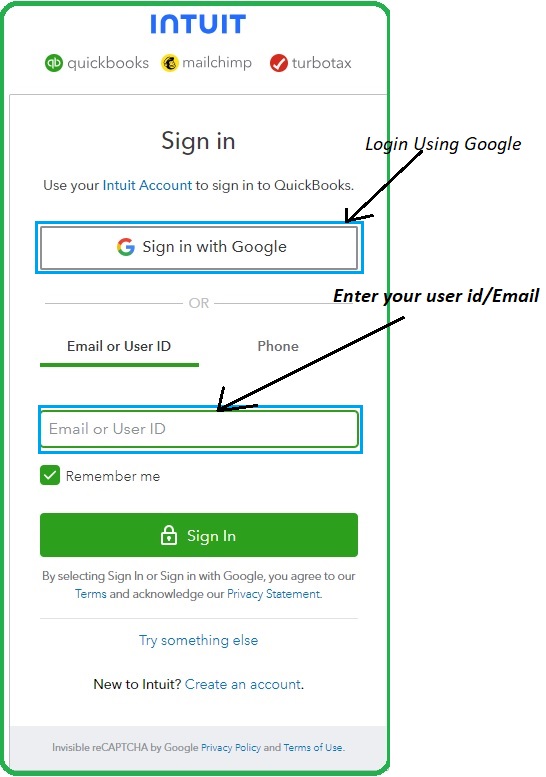
- Choose the Company Settings.
- Click Time Options and hit Time Entry.
Choose an option;
1. If you want to allow the mobile time entry permission:
- Select the Company Settings.
- Hit the Time Options and click Time Entry.
2. If you want team members to sign in from any location;
- Choose Allow team members to manage their own timesheets.
- When done, hitthe Save option.
Turn ON QuickBooks Time employee login on mobile:
- Browse to the Company Settings.
- Choose the Time Options and click Time Entry.
- Make sure to unmark the option: Allow team members to manage their own timesheets and Allow team members to track time on the mobile app.
- Hit the Save and click My team. Then, select a team member.
- After the selection, choose Permissions and click Mobile time entry.
- When done, tap on Save and apply the same steps for each team member.
Step 3: Add your team
Now, you can invite your team. You can add your team members and invite them, or you can send invites.
Add your team members to QuickBooks Time
- Move to Time and click the Overview tab.
- Choose the Go to Classic QuickBooks Time.
- Head to My Team, select Add team members > Add manually.
- Complete the details and select a role.
- For sending an invitation to the team members;
- Enter their email addresses
- Or, mobile number.
- Click on Send an email invitation.
- Or, send a text message invitation.
- At last, select Add Team Members.
Step 4: Manage Time & Run Your Reports
- In QuickBooks Time, choose Schedule and tap on Settings in the calendar.
- Pick the Edit view settings and make the selections. Then, tap on Save.
- Hit the Settings option and pick the Schedule Preferences option.
QuickBooks Time Kiosk Login
Steps to add the Kiosk feature
- Log in to QuickBooks as an admin.
- Browse to the Company Settings and click Time Options.
- Select the Date & Time option.
- Ensure that the time zone is selected from the drop-down menu of Time Zone.
- Hit the Save option and close the window.
- Move to Feature Add-Ons and head to Manage Add-Ons.
- Look for the Time Clock Kiosk and hit the Install option.
Install the Kiosk app in your system
The Kiosk app is supported with the latest versions of Chrome, Safari, Firefox, and Edge. Also, it works well with Android and iOS devices.
- Select the Add Device.
- Choose Use this computer and enter a Kiosk name.
- After this, set your Kiosk preference.
- When the changes are done, click Save or Save & Launch Kiosk.
In a Nutshell
QuickBooks payroll time tracking simplifies employee hour management, overtime calculations, and payroll processing for businesses of all sizes. By using QuickBooks Time, companies can automate timesheets, enhance payroll accuracy, and monitor employee attendance through desktop, mobile, and kiosk tracking options. Setting up QuickBooks payroll time tracking correctly helps reduce administrative workload while improving workforce productivity and payroll efficiency.
Frequently Asked Questions
1. How to set up QuickBooks time tracking?
To set up QuickBooks time tracking;
- Launch your QuickBooks Time account.
- Set up the pay period and then overtime settings.
- Review payroll item and time mapping.
- Add your team and time tracking options.
- Invite team members to track time.
2. What is QuickBooks Time kiosk?
The QuickBooks Time kiosk is a shared time clock feature that lets employees clock in and out using a single device, such as a tablet, computer, or mobile device, at the workplace.
3. Is Tsheets time tracking the same as QuickBooks Time?
Yes, Tsheets is known as QuickBooks Time. This application provides various features like employee scheduling, GPS tracking, payroll syncing, and time management features for businesses.
4. Can QuickBooks payroll time tracking calculate overtime?
Yes, you can calculate overtime with the QuickBooks payroll time tracking. Also, you can compute daily overtime, weekly overtime, double-time rules, and custom overtime settings.

Recent Posts
Tried Everything? Here’s How to Fix QuickBooks Error Code 80070057
Read MoreQuickBooks Enterprise Online Support: Your Complete Help Guide
Read MoreIntuit QuickBooks Customer Service: How to Contact Support
Read MoreQuickBooks Payroll: Service, Setup, Pricing and Support Guide
Read MoreQuickBooks Error Support: Get Instant Help Via Live Chat or Call
Read More