How to Set Up QuickBooks Online Bank Feed Without Errors
Managing business finances manually is time-consuming and increases the risk of accounting errors. To simplify bookkeeping, QuickBooks Online offers a powerful automation feature called the bank feed. It allows businesses to connect bank and credit card accounts directly to QuickBooks Online for faster and more accurate transaction tracking. By linking your bank account, you can also gain real-time visibility into your business finances.
In this post, you’ll learn how to connect a bank account to QuickBooks Online, explore different banking connection methods, manually add transactions, and fix QuickBooks bank feed not working issues.
What is QuickBooks Online Bank Feed?
The QuickBooks Online bank feed is an automation feature that allows you to connect your bank and credit card accounts to your accounting software. Moreover, bank feeds also help businesses;
- Save time on bookkeeping
- Reconciliation of accounts becomes faster
- Monitor cash flow efficiently
- Minimizes manual data entry
- Enhance financial accuracy
How to Connect Bank Account to QuickBooks Online?
Connecting your bank account to QuickBooks Online lets you sync your bank transactions automatically. Thus, it ensures that you can have a complete, up-to-date insight into your business finances without typing a single transaction.
- Choose All Apps, click Accounting > Bank Transactions.
- Navigate to Connect Account.
- Note: If your account is previously connected, click Link Account on the Bank transactions page.
- Look for your bank name by typing it into the search bar. If you’re unable to find your bank name, but can log in to your bank website, hit Request a provider Can’t find your provider? Make a request to add them and perform the steps given on the screen.
- Mention your online banking credentials, like a user ID and password. Then, hit the Continue option.
- Use the steps on the screen to connect.
- Now, opt for the specific accounts that you wish to connect.
- Choose the start date for downloading transactions. The download timespan may vary according to the bank, ranging from 90 days to 24 months.
- At last, tap on Connect and then Done.
Preparations Before Connecting a Bank Account
Before connecting the bank account, find out which bank connection type is supported by your bank.
| Financial Institution | Account Type |
| Airwallex | Direct Feeds |
| American Express | Direct Feeds |
| Standard Feeds | |
| Arab Bank Australia Ltd | Open Banking |
| Aussie Home Loans | Standard Feeds |
| Australia and New Zeeland Banking Group (ANZ) | Open Banking |
| Australian Military Bank | Open Banking |
| Australian Mutual Bank Ltd | Open Banking |
| Bank Austria | Open Banking |
| Bank of Melbourne | Open Banking |
QuickBooks Online Banking Connection Methods
Connecting your bank or credit card account to QuickBooks Online, you can use bank feeds, and it will automatically keep your accounts accurate. However, by linking your accounts, you can download your transactions directly into QuickBooks and save time on manual data entry that may create mistakes. QuickBooks Online supports multiple banking connection methods depending on your financial institution.
Method 1: Connect via Open Banking Feed
Open Banking is one of the safest ways to share financial data with trusted applications like QuickBooks. It enhances speed, security, and automation by giving you full control over which applications can access your account information.
1.1 Connecting a new bank account to Open Banking
Open Banking is an Australia’s new standard used for sharing financial data safely, and is mandated by Australian Competition and Consumer Commission (ACCC) as part of the Consumer Data Right (CDR). Many financial institutions are discontinuing older bank feed types to opt for this next-generation connection.
Prerequisites
Take care of the following things before connecting your bank feed for a smooth setup process.
- Get ready with your mobile number.
- Make sure to have an Australian Business Number (ABN) or an Australian Company Number.
- Organize if there are any pending transactions in QuickBooks before connecting to keep your books of accounts up-to-date.
- Enable pop-ups in your web browser settings.
Step 1: Check if your account needs a data sharing delegate assigned
According to the Open Banking rules, some bank account types, including companies, partnerships, and trusts, need you to nominate a data sharing delegate before connecting a bank account to QuickBooks.
To see if you have to appoint a data sharing delegate for any of your bank accounts.
- Visit the CDR Ready website.
- Choose the Get Started option.
- Use the on-screen prompts to verify your details and to give consent for sharing the data temporarily so the site can verify whether your account is all set to connect to QuickBooks.
- Click Confirm to move further.
- After this, you will see the accounts that are all set to connect with QuickBooks.
- If the account you wish to connect to QuickBooks is displayed, click Yes, all of my accounts are here.
- Navigate to Check Accounts for another bank or choose I’m Done.
- If any accounts are missing or not displayed, select No, not all of my accounts are here.
- Select the Link provided for instructions on how to set up a data sharing delegate for your bank.
- When the account is set up, come back and complete Step 1 again.
- Once the account(s) you want to connect to QuickBooks is displayed, proceed to Step 2.
Step 2: Connect your Open Banking feed
Now that Step 1 is finished and your accounts have been assigned a data sharing delegate where required, you can proceed to QuickBooks to disconnect your current bank feed and connect your Open Banking feed.
- Move to All apps, click Accounting, then Bank transactions (Take me there).
- Choose the Connect account.
- Important Tip: If you’ve already connected an account, select Link account on the Bank transactions page.
- Locate your bank by its URL or name, or select a bank from the list.
- Click Yes, this is for business purposes.
- If you are connecting to Opening Banking for the first time, mention the business account and the Australian Business Number (ABN) or Australian Company Number (ACN).
- Now, you must go through the consent details and click Agree.
- Log in using your online banking credentialsand follow any necessary security steps.
- Please note: You will notice both a personal and a business profile. You need to choose the business profile. If you only notice personal accounts, return and move to the business profile. This is the most common reason behind business accounts not appearing in the setup process.
- Pick the accounts that you want to connect with QuickBooks Online. Herein, you can also choose more than one account.
- If you notice that an account is missing or not displaying, verify if these apply;
- You have logged in to the personal profile, not the business profile. Return and move to the business profile.
- You haven’t set up as a data sharing delegate- complete Step 1 or leave for up to 1 business day to appear in the bank system.
- The account type isn’t supported by your bank for Open Banking. All you require is to import these transactions via a CSV file.
- Connect the bank feed to the necessary Chart of Account Code or Account name from the picklist. Perform the same steps for each bank account you want to connect with QuickBooks. For connecting with a bank account to QuickBooks for the first time, you can also create a new Chart of Accounts code if required by clicking Add New.
- Pick the date you want the transactions to import from. You have the option to import transactions from up to 24 months.
- Click Connect.
In the Bank transaction screen, you’ll notice the new bank account tile along with any newly imported transactions. However, you can choose Update and any new transactions will be imported.
Migrating an existing bank account to Open Banking
2. Migrating an existing bank account to Open Banking
Perform the following steps to migrate an existing bank account to Open Banking.
Step 1: Check if your account needs a data sharing delegate assigned
The steps to verify if your account needs a data sharing delegate assigned are discussed above.
Step 2: Connect your Open Banking Feed
After verifying if your account needs a data sharing delegate assigned, move to QuickBooks to disconnect your current bank feed. Then, you can easily connect with your Open bank feed.
Disconnect your current bank feed
- Select All Apps, click Accounting, and choose Bank transactions.
- After this, pick the relevant bank account tile, and click the Pencil icon.
- Head to the Disconnect account.
- At last, click Disconnect to confirm your selection.
Connect your Open Banking feed
The steps to connect your open banking feed is described above.
Method 2: Connect via a Direct Feed
Direct feeds offer a specialised connection for eligible accounts but require a manual authorisation process.
Account eligibility and requirements
- Foreign Currency- Only the standard Commonwealth Bank of Australia (CBA) accounts with a BSB and account number are eligible. Whereas the other foreign currency accounts must require standard connections.
- Macquarie Bank- The accounts starting with “00” or Term Deposits aren’t supported. You need to use Cash Management (starting with 1 or 9) or Business/Trust Accounts (starting with 2 or 3).
- American Express- These accounts use a different process.
Authorisation steps:
- Move to All Apps, click Accounting, and then choose Bank Transactions.
- Find your bank and hit Get direct bank feeds.
- Now, provide your account details in the same way as it’s written in your bank records.
- Choose the account, click Connect, and tap on Preview form to create your authorisation document.
- Print and sign the form. Make sure that all account signatories must sign.
- You must send the form to SISS Data Services via email at intuitforms@siss.com.au, along with the subject. “QuickBooks Bank Feed Request” or via mail to Locked Bag 3060, Crows Nest, NSW, 1585.
- After this, submit one separate form and email for each new bank account for connecting.
- Finally, give around 10 business days to complete the processing.
Method 3: Connect via a Standard Feed
Use the following steps to generate a standard bank connection and download your recent transactions.
- Click All Apps > Accounting and choose Bank Transactions.
- Go to the Connect account for a new connection, or Link account if you have already linked with this account.
- Look for your account and choose Continue.
- Log in to your account using the bank user ID and password. Then, complete necessary security checks.
- Now, pick the specific bank account that you want to connect, like savings, transaction, or credit card accounts.
- For each account, pick the matching account type from the Charts of accounts in QuickBooks.
- After that, choose the time period for downloading the transactions. Most of the financial institutions support 90 days, whereas some offer up to 24 months.
- Click Connect and then refresh your QuickBooks Online window.
How to Manually Add a Bank Account to QuickBooks Online
Sometimes, users have to add a bank account to QuickBooks Online manually when automatic syncing is unavailable.
Steps to Add a Bank Account in QBO
- First, log in to QuickBooks Online.
- Navigate to Transactions and click Bank Transactions.
- Choose the Upload Transactions.
- Now, upload your bank statement file. The QuickBooks Online supports;
- CSV files
- QBO files
- OFX files
- Map the columns accurately and check the imported transactions.
- When done, hit the Import option.
How to disconnect a bank connection?
You have the option to stop transaction downloads without affecting data. Disconnecting will stop the new downloads by storing your history.
- Select All Apps, click Accounting, and choose Bank transactions.
- Choose your bank account tile, and click the Edit icon.
- Navigate to Disconnect account.
- Click Disconnect for the confirmation.
QuickBooks Bank Feeds Not Working? Fixes
QuickBooks bank feeds stopped working issue may occur due to bank server outages, expired login credentials, or pending security verifications at your financial institution. However, to fix the issue, get your bank feeds running again.
1. Check Your Bank Alerts & Credentials-
You must check the email or notification sent by your bank on your bank website that needs your attention. Also, verify that you are using the correct login credentials to log in to your bank account.
2. Manually Refresh the Connection-
To refresh the connection, update online banking.
- Open QuickBooks Online and move to the Banking or Transactions menu.
- Hit the Update or Refresh button.
3. Clear Cache & Update QuickBooks-
By clearing the browsing cache, cookies can help fix the loading issues. Once the cache is cleared, launch QuickBooks in an incognito window to use the bank feed.
Also, you must ensure that QuickBooks is updated to the latest version.
Best Practices For Managing Bank Feeds
To manage the QBO bank feeds smoothly;
- Check your bank transactions daily.
- Avoid duplicate entries in QuickBooks Online.
- Make sure to keep your bank login credentials up-to-date.
- Reconcile your bank accounts regularly.
Final Thoughts
By setting up QuickBooks Online bank feed accurately, it helps in simplifying bookkeeping, enhances financial accuracy and reduces manual data entry work. Whether you use Opening bank feeds, direct feeds, or Standard feeds, regular monitoring of transactions will help in keeping your books of accounts updated.
Frequently Asked Questions
1. Why is my QuickBooks bank feed not updating?
QuickBooks bank feed not updating due to expired online banking details, server maintenance at the end of your bank, or a connection glitch between the bank and QuickBooks.
2. Can I manually upload bank transactions into QuickBooks Online?
Yes, you can manually upload bank transactions into QBO using the spreadsheet.
3. Where can you access downloaded transactions in QuickBooks Online?
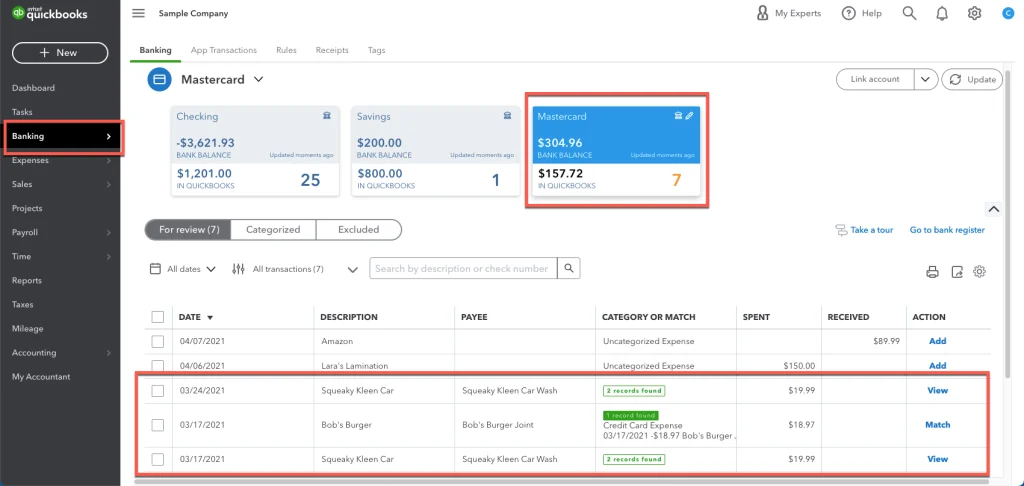
The downloaded transactions are stored in the Banking (or Transactions menu) below the For Review tab.
4. Is QuickBooks Online bank feed secure?
Yes, QuickBooks Online bank feeds are highly secure.

Recent Posts
Tried Everything? Here’s How to Fix QuickBooks Error Code 80070057
Read MoreQuickBooks Enterprise Online Support: Your Complete Help Guide
Read MoreIntuit QuickBooks Customer Service: How to Contact Support
Read MoreQuickBooks Payroll: Service, Setup, Pricing and Support Guide
Read MoreQuickBooks Error Support: Get Instant Help Via Live Chat or Call
Read More