What Causes QuickBooks Error PS033 & Top Methods to Fix It?
QuickBooks Error PS033 is a payroll update error that occurs when the software fails to read payroll setup files or when the tax table is corrupted. It mainly occurs due to a damaged CPS folder, an incorrect service key, or an outdated QuickBooks Desktop version. When the error triggers, the following alert message flashes on the screen stating;
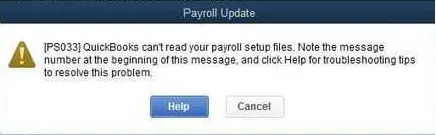
“[PS033]: QuickBooks can’t read your payroll setup files. Note the message number at the beginning of this message, and click Help for troubleshooting tips to resolve this problem.”
As a result, this error causes payroll update failure and requires updating tax tables or resetting the CPS folder. In this guide, we have mentioned all the causes and effective solutions to fix QuickBooks Payroll Error PS033.
QuickBooks Error PS033 mainly appears while trying to download the latest payroll updates. So, to fix the issue, rename the CPS folder.
What is Error Code PS033 in QuickBooks?
The QuickBooks Error Code PS033 usually appears while downloading the latest payroll updates. It may occur due to damaged or corrupt company files on your system.
What Brings Forth QuickBooks Desktop Error PS033?
Users often encounter QuickBooks Desktop Error PS033 due to a damaged CPS folder. Other factors causing this error are mentioned below.
- Running the outdated version of the payroll tax table.
- Inadequate internet connection settings.
- Windows Firewall is blocking the payroll updates in QuickBooks Desktop.
- Using an invalid or inactive QuickBooks payroll subscription.
- Insufficient admin rights to install new QuickBooks software updates.
- Not using the updated QuickBooks Desktop version.
How to Fix QuickBooks Payroll Update Error PS033?
Fixing the QuickBooks Payroll Update Error PS033 may seem complicated, but you can try the following troubleshooting methods to fix it.
Method 1: Check Your Payroll Service Subscription
To prevent the PS033 error in QuickBooks Desktop, check whether you have an active payroll subscription. Use the following steps to check the status of the payroll subscription.
- Exit from all your company files and restart your PC.
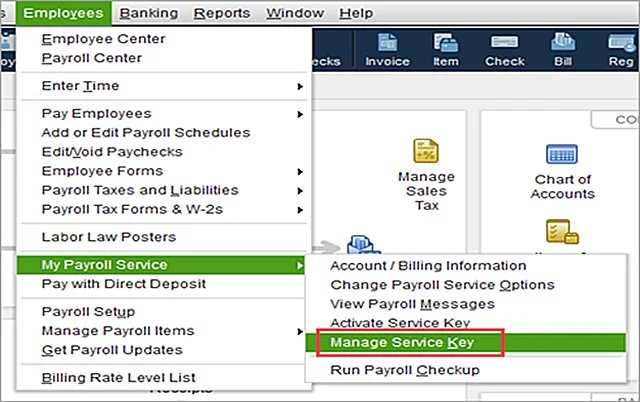
- Launch the QuickBooks application and click the Employees menu.
- From the sub-menu list, choose My Payroll Service and hit the Manage Service Key option.
- Be sure that your Service Name is correct and that the status is set as Active.
- Now, hit the Edit menu and review the service key number. If it’s incorrect, provide the right service key.
- Tap on the Next option and leave the checkbox of the Open Payroll Setup box unchecked. Then, hit the Finish tab.
- As a result, it will start downloading the entire payroll update. If the error persists, then try the next solution.
Method 2: Register & Update Your QuickBooks Desktop
Make sure that you have the latest security and software improvements. Perform the following steps to check if your software is registered.
- Initially, hit the F2 key to launch the Product Information window.
- After this, see next to the license number, and see if it shows Activated.
- Important Tip: If it won’t say Activated, register your QuickBooks Desktop.
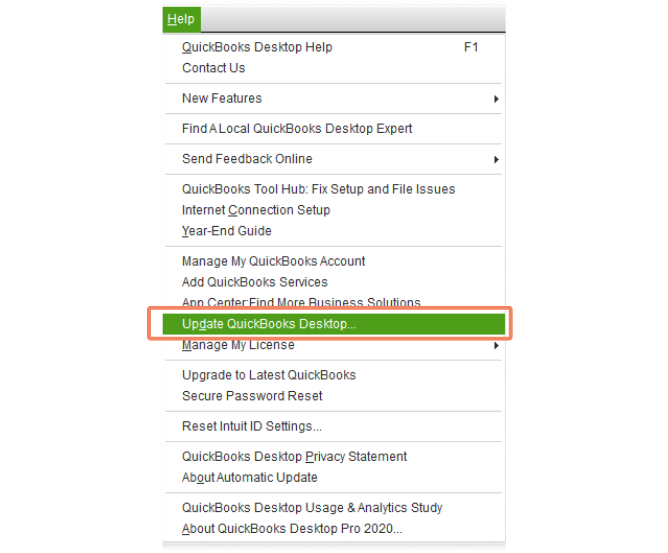
- Once the registration is done, update QuickBooks to the latest release.
- Finally, download the latest payroll tax table update.
Method 3: Rename the QuickBooks CPS Folder
Damage to the QuickBooks CPS folder may cause QB Payroll error code PS033. Therefore, to fix the issue, change the name of the QuickBooks CPS folder.
- Close QuickBooks and navigate to the following path: “C:\ Program Files\ Intuit\ QuickBooks 20XX\ Components\ Payroll\ CPS.”
- After this, right-click on the CPS folder and choose the Rename option.
- Include .OLD at the end of the file name and save it.
- At last, continue your payroll tasks and see if the QuickBooks Payroll Error PS033 still exists.
Method 4: Disable the User Account Control (UAC)
Turning off the User Account Control settings helps users rectify the QuickBooks Payroll Error Message PS033 by deleting the Windows security restrictions preventing QuickBooks from updating payroll files. User Account Control might block access to QuickBooks, preventing editing or accessing the important files in the CPS folder. Perform the following instructions to turn off the User Account Control settings.
- Before starting, exit from the QuickBooks application.
- Go to the desktop, right-click on the QuickBooks icon.
- Tap on the Run as Administrator option from the options.
- This will open a pop-up window asking if you will allow the program to make changes to the computer, and click Yes.
- You will see that the program will open normally. UAC controls for this session have been disabled temporarily.
- If you exit from the window and launch Internet Explorer again normally, UAC Control will be set as Active by default.
Method 5: Download the Latest Payroll Tax Table Update
If you are getting the QuickBooks application error code PS033 while opening the company file, try updating the latest payroll tax table. For that, use the steps given below.
- Initially, move to the Employees menu and click Get Payroll Updates.
- Verify that you have circled the Download Entire Update checkbox.
- At last, hit the Download Latest Update option.
Method 6: Add Defender Exclusion & Run Quick Fix My Program
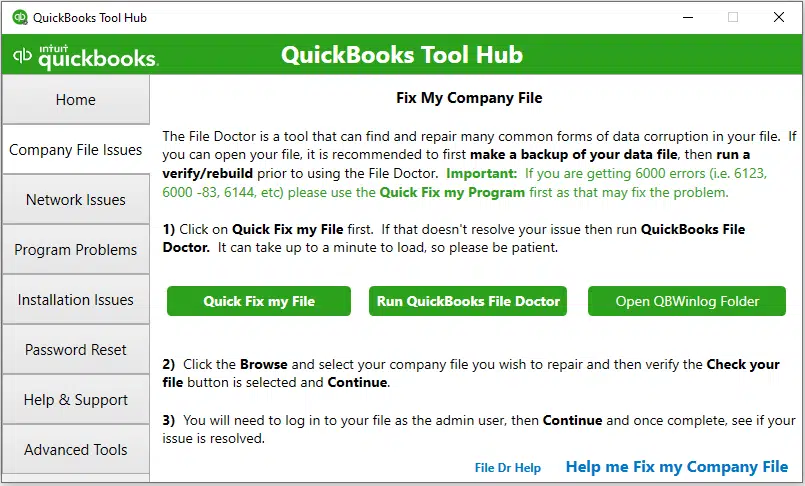
- Exit from the QuickBooks Desktop and your company file.
- After this, add the Defender Exclusion. Otherwise, you can temporarily turn off the Windows Defender Antivirus Protection.
- Choose the Program Problems from the QuickBooks Tool Hub.
- Tap on Quick Fix My Program and then relaunch QuickBooks.
- Thereon, ensure that you have updated QuickBooks Desktop to the latest release.
- At last, download and install the latest tax table.
Method 7: Restore Advanced Connection Settings in Internet Explorer
At times, the connection settings in Internet Explorer may block you while updating the QuickBooks Desktop. As a result, it may result in Payroll update error code PS033 in QuickBooks. Follow the steps below to edit the connection settings in Internet Explorer.
- Launch Internet Explorer on your computer and move to Google.com.
- Choose the Tools menu and click Internet Options.
- After this, hit the Advanced option and head to the Reset or Restore Defaults option.
- Finally, click Apply and then the OK tab to complete the process.
Method 8: Update Internet Settings
Use the following steps to configure the internet settings to fix the payroll update error code PS033 in QuickBooks.
- Firstly, go to the Tools menu and click Internet Options.
- Hit the Delete option from the General tab.
- After that, choose the Temporary Internet Files and hit the Delete option.
- Browse to the LAN Settings on the Connections tab. Circle the checkbox of Automatically Detect Settings. Make sure to keep all proxy servers blank unless you use one. Then, hit the OK tab twice.
- Now, scroll down to the list and click the Advanced tab. Circle the checkbox of SSL 2.0 and SSL 3.0.
- Also, verify that the checkbox of “Check for publisher’s certificate” is unmarked.
- Once again, scroll down, and ensure that TLS 1.2 is marked. Make sure to keep the checkbox of TLS 1.0 and TLS 1.1 marked.
Method 9: Add Intuit as a Trusted Website in Internet Explorer
To add Intuit as a trusted website in Internet Explorer, perform the following steps.
- Initially, hit the Tools menu > Internet Options from Internet Explorer.
- After this, head to the Security tab and hit the Trusted Sites icon.
- Move to the Sites option.
- Insert “*.intuit.com” into the Add this website to the zone box.
- Afterward, circle the checkbox of Require server verification (https:) for all sites in this zone to clear it.
- When all the changes are done, hit the Close and then OK option.
Method 10: Update Windows Operating System
Perform the following steps to update the Windows operating system to the latest version.
- Click the Start menu and type updates in the search console.
- After that, hit the Check for Updates option.
- Now, download and install the latest Windows updates if available.
- Finally, relaunch your PC to apply the changes.
Conclusion
QuickBooks Error PS033 mainly appears when trying to update the QuickBooks payroll to the latest version. But it can be easily fixed by updating Windows, disabling the QuickBooks File Copy Service, editing the Internet settings, or verifying the payroll service subscription. By following the above solutions, you can easily regain access to payroll updates without any further delays.
Frequently Asked Questions (FAQS):-
Question 1: What causes PSXXX error codes when downloading payroll updates in QuickBooks Desktop?
Ans. The QuickBooks Error PSXXX mainly arises while trying to download payroll updates in QuickBooks Desktop. This issue may arise due to incorrect internet settings or firewall blockage.
Question 2: What are the signs indicating QuickBooks Error Code PS033?
Ans. The following are the signs that you may experience while encountering QuickBooks Error Code PS033.
- You won’t be able to download the payroll update.
- The error message appears while getting the QuickBooks Error PS033.
- Your QuickBooks application may freeze, or your system may start crashing.
Question 3: Why am I getting a QuickBooks payroll update error?
Ans. The QuickBooks payroll update error may occur due to an inactive QuickBooks payroll subscription or outdated billing details. This error may prevent you from downloading the latest payroll tax table update.
Question 4: What is the payroll update error in QuickBooks Desktop?
Ans. The QuickBooks Payroll update error occurs when the software fails to download the payroll tax table update.

Recent Posts
Tried Everything? Here’s How to Fix QuickBooks Error Code 80070057
Read MoreQuickBooks Enterprise Online Support: Your Complete Help Guide
Read MoreIntuit QuickBooks Customer Service: How to Contact Support
Read MoreQuickBooks Payroll: Service, Setup, Pricing and Support Guide
Read MoreQuickBooks Error Support: Get Instant Help Via Live Chat or Call
Read More