How to Fix QuickBooks Error 15241 While Updating Payroll?
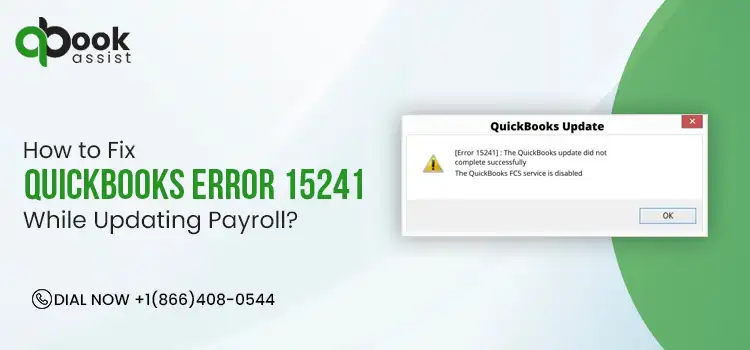
Payroll deadlines are important, and nothing disrupts a business more than a faulty update. QuickBooks Error 15241 often appears while trying to update payroll tax tables, preventing the software from updating. However, when the error comes up, it throws the following error message:
“[Error 15241] The payroll update did not complete successfully.
The QuickBooks FSC Service is disabled.”
This error mainly arises due to issues with the Windows Registry or disabled file copy services. If you are also stuck with this error, you’re not alone. In this detailed post, we are going to explain the root causes and troubleshooting tips to fix the QuickBooks Desktop Error 15241.
QuickBooks Error 15241 belongs to the 15xxx series of errors that occur while downloading the latest payroll tax table update. So, to resolve the issue, enable the QuickBooks FCS Service and update the payroll tax table.
What is Error 15241 in QuickBooks Update?
QuickBooks Error 15241 is a payroll update issue that usually occurs when the QuickBooks File Copy Service (FCS) is disabled. It prevents users from downloading or installing payroll updates. This error may also arise due to damaged installation files, issues with the Windows Installer, or security software blocking the update process.
What are the Factors Causing QuickBooks Update Error 15241?
QuickBooks Update Error 15241 is a complex issue that takes place while downloading the payroll tax table update. It may be caused by numerous reasons. Let’s understand all the causes to fix the error smoothly.
- Inadequate user permissions can restrict the ability to update the QuickBooks Payroll.
- Incorrect or faulty installation of the QuickBooks Desktop.
- Using the unsupported version of the QuickBooks software.
- Antivirus or Windows firewall is blocking QuickBooks from downloading the latest payroll updates.
- You have disabled the QuickBooks File Copy Service.
- The shared download drive isn’t mapped correctly.
- Invalid or outdated Digital Signature Certificate.
- Misconfigured Internet Explorer settings can also trigger QuickBooks Error Code 15241.
How to Fix QuickBooks Error Code 1524 Using Top 6 Methods?
After understanding the causes, let’s find out the effective ways to resolve the QuickBooks Error Code 15241 smoothly.
Method 1: Run the Reboot.bat file
Running the reboot.bat file will re-register the QuickBooks-related extensions in Microsoft Windows and help fix the Update Error 15241 in QuickBooks.
- Exit from the QuickBooks application.
- Move to the QuickBooks folder containing the reboot.bat file.
- Right-click on the QuickBooks desktop icon from the desktop and click Properties.
- Choose the Open File location option.
- Now, right-click on the reboot.bat file and tap on the Run as Administrator option.
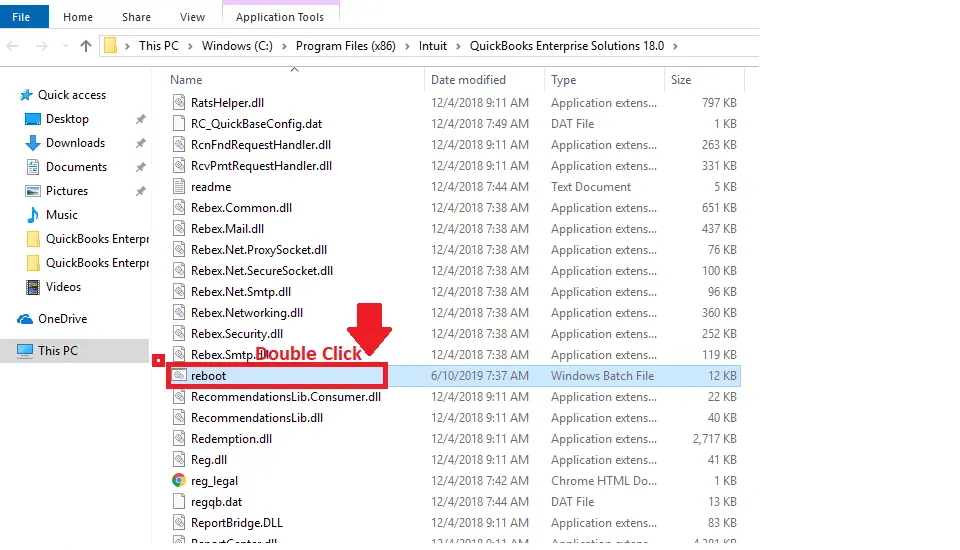
- As a result, it will launch a Command window with scrolling file names. Make sure not to shut down this window manually. Once the reboot.bat utility is completed, the window will eventually close.
- At last, relaunch your PC and then launch QuickBooks.
Method 2: Enable the QuickBooks Desktop File Copy Service (FCS)
Here’s how to enable the QuickBooks File Copy Service.
- Open the Run window and insert COMPMGMT.MSC in the search box.
- Tap on OK, and it will open the Computer Management window. From there, click the Services and Applications.
- Tick mark the Services and scroll down to get the Intuit File Copy Service. Then, double-tap on the FCS service.
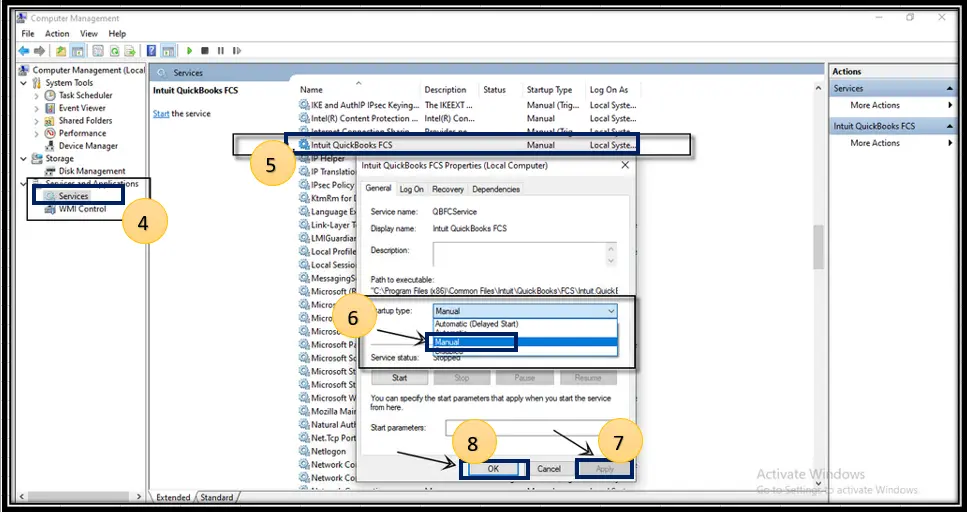
- Choose the Startup Type option and click the Manual option.
- Now, head to the Apply and then the OK option.
Method 3: Re-Validate the Payroll Service Key
Perform the following steps to re-validate the payroll service key.
- Initially, move to the Employees menu from the top menu bar.
- Select the My Payroll Service and hit the Activate Service Key option.
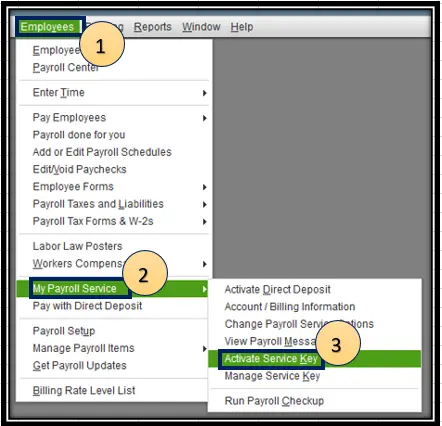
- After that, highlight the current payroll below the Service Keys and choose the Edit menu.
- Choose the Next option until you finish up.
- If the issue still exists, then try another solution to fix the error.
Read More:- QuickBooks Won’t Open
Method 4: Install a Digital Signature Certificate
The Digital Signature Certificate verifies the authenticity of QuickBooks updates to download them uninterruptedly. So, to fix the issue, you must install an updated digital signature certificate by performing these steps.
- Move to the C:\Program Files\ Intuit\QuickBooks file path.
- After this, locate and right-click the QBW32.exe file and choose the Properties tab.
- Go to the Digital Signatures tab and verify if Intuit is chosen from the signature list, and hit the Details tab.
- When you are on the Digital Signature Details window, select the View Certificate option.
- Choose the Install Certificate option from the Certificate window.
- Hit the Next tab unless the Finish option is displayed, and then choose Finish.
- At last, relaunch your system and then try to download the QuickBooks updates.
Method 5: Download the Updates As Administrator
It is essential to have the proper administrative rights to download and install the latest QuickBooks payroll updates. Here’s how to download the updates as an administrator.
- Exit from the company file and then your QuickBooks Desktop.
- After this, right-click on the QuickBooks Desktop icon.
- Select the Run as Administrator option.
- From the pop-up message, “Do you want to allow this program to make changes to your computer?”, tap on the Yes option.
- Start downloading the latest QuickBooks Desktop product updates.
- Finally, begin downloading the latest payroll tax table update once again.
Method 6: Run Quick Fix My Program
To end all the background running processes in QuickBooks, run the QuickBooks Fix My program from the tool hub. This will immediately run a quick repair on your QuickBooks program and help fix the QuickBooks Payroll Update Error 15241.
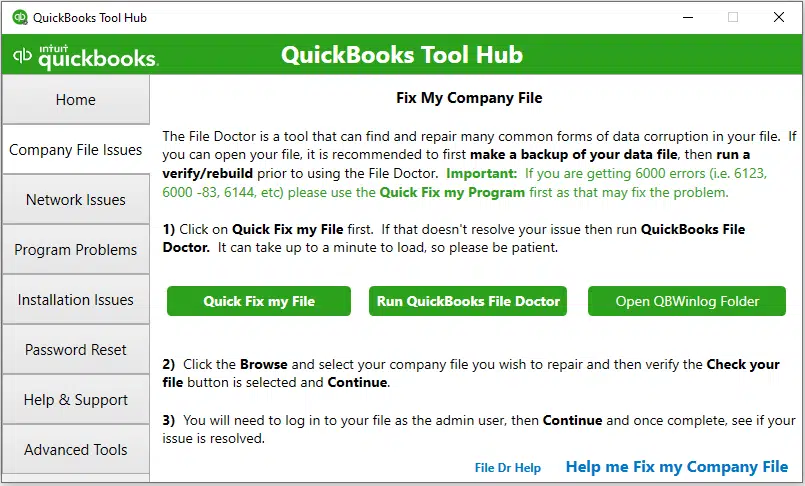
Important Tip: Verify you have downloaded and installed the latest version of the QuickBooks Tool Hub.
- Double-click on the QuickBooks Tool Hub icon to open it.
- From the dashboard, choose the Program Problems tab.
- Click the Quick Fix My Program tab.
Method 7: Map the Network Drive on Windows
Perform the steps below to run a mapped drive on Windows.
- Launch the Run window by pressing the Windows + R keys.
- Now, insert “File Explorer” in the search panel and launch the File Explorer window.
- Go to the left pane and pick the “This PC” option.
- Hit the More (…) option and then tap on Map Network Drive.
- Browse to the Drive section drop-down menu and choose any available letter.
- Move to the Folder section, and note down the folder path or computer. Then, hit the Browse tab and pick the network folder.
- To ensure that you connect with the network drive every time you log in, hit the Reconnect Sign-in option.
- At last, tap on the Finish tab to wrap up the process.
Method 8: Update Payroll Tax Tables
Running the outdated version of the payroll tax table may give rise to the QuickBooks error 15241 payroll update. Perform the following steps to update the payroll tax table to the latest version.
- Initially, browse to the QuickBooks Employees menu and click the Get Payroll update option.
- Circle the Download Entire Update checkbox and browse to the Update option.
- At last, you will get the Download Complete pop-up window on your screen.
Method 9: Repair QuickBooks With QuickBooks Install Diagnostic Tool
The QuickBooks Install Diagnostic tool is used when there is a problem with the installation of the QuickBooks Desktop application. This tool scans for the issues and then runs a quick repair to configure the damage with the QuickBooks installation. Thus, it will help you fix the QB Desktop Error 15241.
Method 10: Reinstall QuickBooks Desktop
Even after applying all the solutions, you still couldn’t fix QuickBooks Error 15241, so try to reinstall QuickBooks Desktop. This will install a fresh version of the QuickBooks software so that you can get the payroll updates smoothly.
Conclusion
QuickBooks Error 15241 is a common payroll update issue that may be caused by incorrect firewall settings, an outdated digital signature certificate or an unstable internet connection. However, you can fix this issue by performing the troubleshooting methods discussed ahead in this blog.
If the error continues, don’t take any stress and reach out to our qbookassist professionals for immediate guidance.
Frequently Asked Questions (FAQ’s):-
Question 1: Why is QuickBooks not updating payroll?
Ans. QuickBooks is not updating payroll due to damaged files, invalid configurations, outdated settings or connectivity issues.
Question 2: What is the File Copy Service in QuickBooks?
Ans. The QuickBooks File Copy Service (FCS) is a background service used by QuickBooks Desktop to apply updates and install payroll components. In case the File Copy Service is disabled, you won’t be able to download the updates.
Question 3: How can I prevent QuickBooks Error 15241 in the future?
Ans. To avoid the QuickBooks Error 15241 from occurring;
- Make sure that QuickBooks is updated to the latest version.
- Always ensure that FCS Service is enabled.
- Verify you have proper admin rights to update the QuickBooks Desktop.
Question 4: Is Error 15241 related to payroll updates?
Ans. Yes, the QuickBooks Error 15241 is often linked with payroll update failures in QuickBooks Desktop.

Recent Posts
Tried Everything? Here’s How to Fix QuickBooks Error Code 80070057
Read MoreQuickBooks Enterprise Online Support: Your Complete Help Guide
Read MoreIntuit QuickBooks Customer Service: How to Contact Support
Read MoreQuickBooks Payroll: Service, Setup, Pricing and Support Guide
Read MoreQuickBooks Error Support: Get Instant Help Via Live Chat or Call
Read More